Overview
This is used to view historical information on Table sales.
The report can display individual Table Groups, or all the Tables combined.
The Table Report also works similar to the Transaction Journal in that if a row is double-clicked, it will display the transaction similar to the way it appears at a POS workstation.
Prerequisites
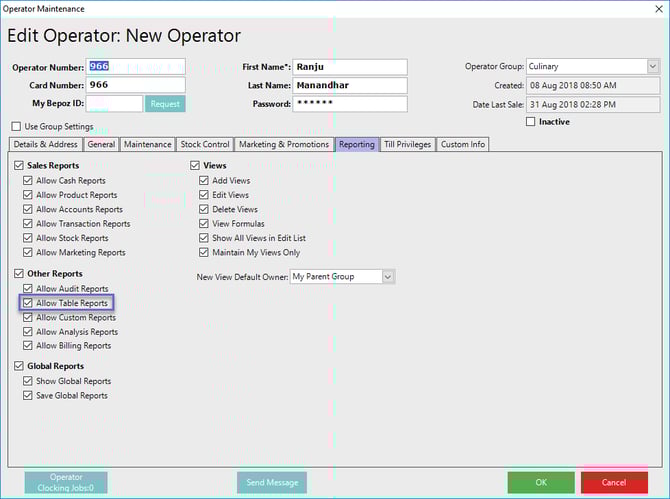
- For an Operator to be able to access and run Table Reports within BackOffice, the Allow Table Reports flag within the Reporting tab of Operator Maintenance must first be enabled
- If this flag is not enabled, an Operator cannot access Table Reports
Accessing Table Report
- Complete the following steps to access Table Reports:
- Log in to BackOffice
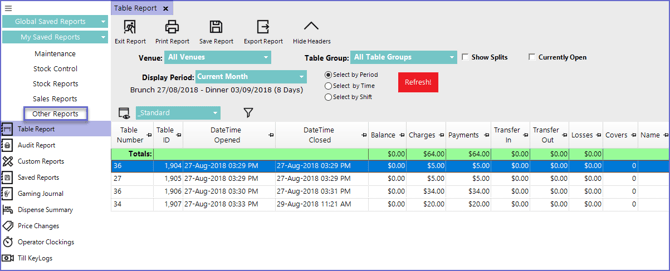
- From the side menu, Select "Other Reports" to expand the list of Available Reports
- Select Table Reports which will open a new Table Report Window
Reporting Options
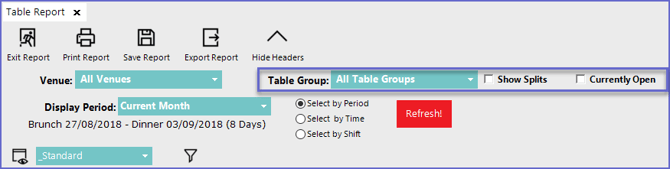
- Venue: Sets the venue for which the report is generated
- Display Period: Sets the time period for which report will be generated
- The time can be selected either by choosing specific Period, Time or a shift
- Table Group- Will select specific table group
- Show Splits - Will Display Split tables on the report
- Currently Open - Will display all tables that are currently opened
- Double-clicking on a line will display the transaction in a similar way it appears at a SmartPOS Workstation
Report View Options
"_Standard" View
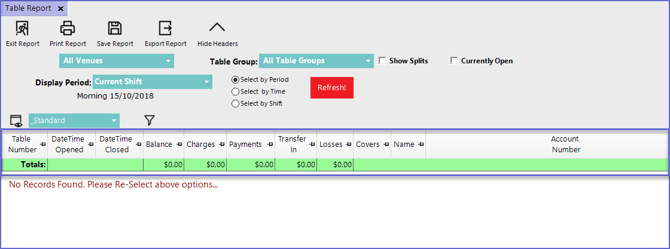
- The Standard View of the Table Report includes the following data columns by default:
|
Column Heading |
Data Description |
|
Table Number
|
|
| DateTime Opened |
|
| DateTime Closed |
|
| Balance |
|
| Charges |
|
| Payments |
|
| Transfer In |
|
| Losses |
|
| Covers |
|
| Name |
|
| Account Number |
|