
Overview
Table Accounts are used for instances where a Transaction is left open for a period of time while Products can be added over the course of that time and then a Payment is Tendered and the transaction is Finalized.
Table Accounts can be of two types - Standard Table Account & Bistro Table Account. A Standard Table account is created in common dining scenarios where customers are seated and payments are usually processed at the end of the dining experience.
Conversely, Bistro Table Account is a system where the customers from the same table make separate orders and payments and payments are typically processed immediately after ordering.
Within SmartPOS, there are a variety of methods for processing Transactions to these temporary Accounts such as Tables and Bar Tabs in different Food & Beverage Service environments which will be covered in this article.
Prerequisites
-
To access SmartPOS Tables and Tabs features, the applicable Operator Privileges will need to be enabled
-
Operator Maintenance 'Till Privileges' Tab
-
All "Tables" Flag
Tables & Tabs (Table Accounts) Explained
-
Temporary Accounts within SmartPOS are created by Opening a Table
-
The customers who are seated in the Table will be temporary "account holders" for the system until their Transaction/s have been processed and the Table is Closed
-
This type of temporary account will either be a Standard Table Account or a Bistro Table Account as discussed in the article overview
Standard Table Account
-
The Standard Table Account Function is used for Restaurants, Cafés, and Bar Tabs where the temporary account can be left running for a period of time and Products can be added over that period
-
When using a Standard Table Account, an Operator can first Begin the table, Enter the products to be sold, and then Save the table
-
The Table can then be Reopened to add more products and make adjustments to the Transaction
-
When customers request a bill, the Operator can Print it for them, Tender a Payment, and Finalize the Transaction
-
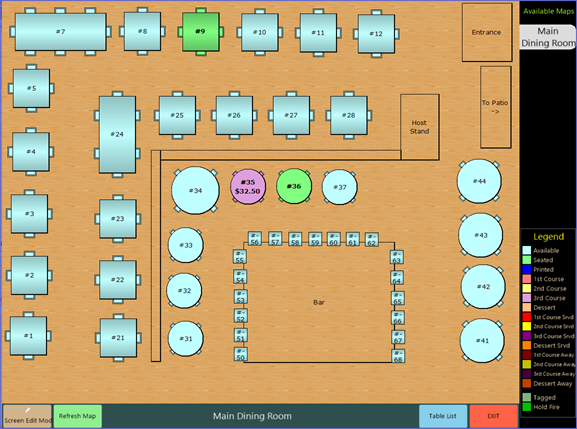
Standard Table Accounts also allows split billing so that customers can tender their payments separately
-
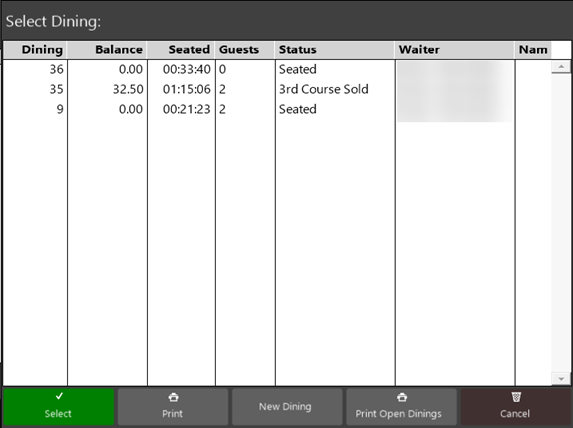
The Tables can either be viewed on Table Map or Table List
-
More information on this type of Table Account is covered in the next article
Bistro Table Account (Version 4.7 and below)
-
The Bistro Table Account Function is used in a Bistro environment where customers generally Tender Payment and Finalize the Transaction when ordering
-
This type of account allows Operators to open a 'table' and process multiple Transactions to the same Table order (a number is typically assigned which the guest will display prominently on the table; alternatively the guest may be given a pager which corresponds to the assigned Table number)
-
However, only one kitchen printer docket prints consolidating all of the orders processed for the same Table number
-
In this type of account, payments need to be done beforehand otherwise the system will not allow Closing the Transaction
-
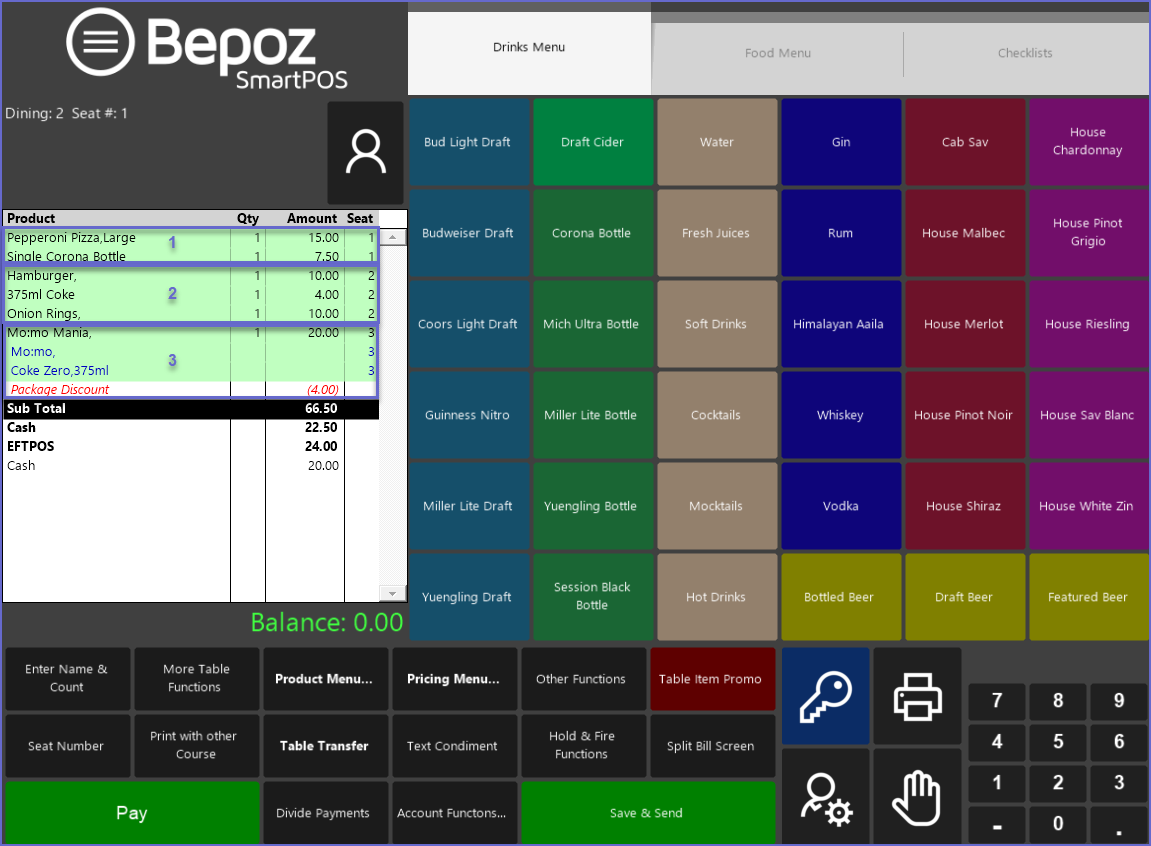
An example of a Bistro Table Account is shown below where three transactions are processed for the same Table
-
Here even though three separate payments have been processed, the Table will combine all of them and a subtotal is displayed along with the individual payments
-
Customers can also receive individual Transaction Receipts after each individual payment
Table Account Uses
-
As mentioned above, Table Accounts can be used in any environment which requires a Transaction to be held Open for a period of time allowing customers to add Products during that time
-
Such environments include Full-Service Restaurants, Cafés, Private Clubs, and Bars that allow running Tabs
-
A Venue can have up to seven (8) different Table Groups and have separate Function buttons to allow access to Table Accounts for each
-
The Function button to begin a Table Account can be renamed for clarity respective to its use, but the functionality would remain the same
-
Video Walkthrough