Overview
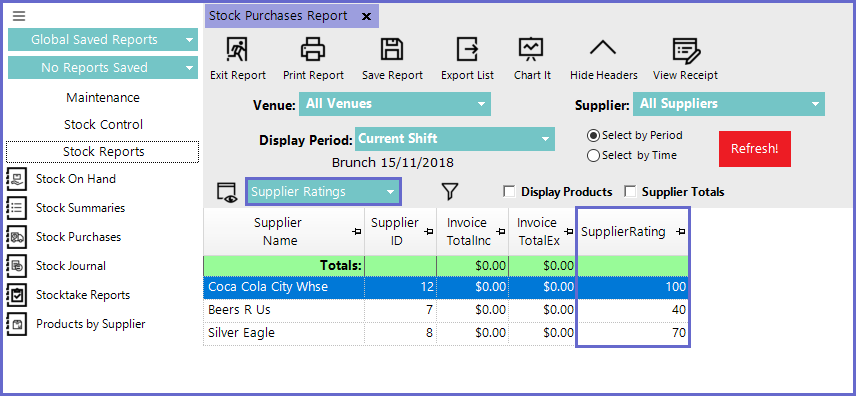
Supplier Rating is a star-rating system that is enabled via Global Settings where Operators are able to Rate Suppliers and Orders.
Ratings can then assist with Business Operations and compare with other Suppliers.
Prerequisites
- To access Supplier Rating Settings, the applicable Operator Privileges will need to be enabled:
- Operator Maintenance 'General' Tab
- System Setup: " Maintain Venue, Stores & Tills" Flag
- Operator Maintenance 'Reporting' Tab
- All "Sales Reports" Flags
Enabling Supplier Ratings
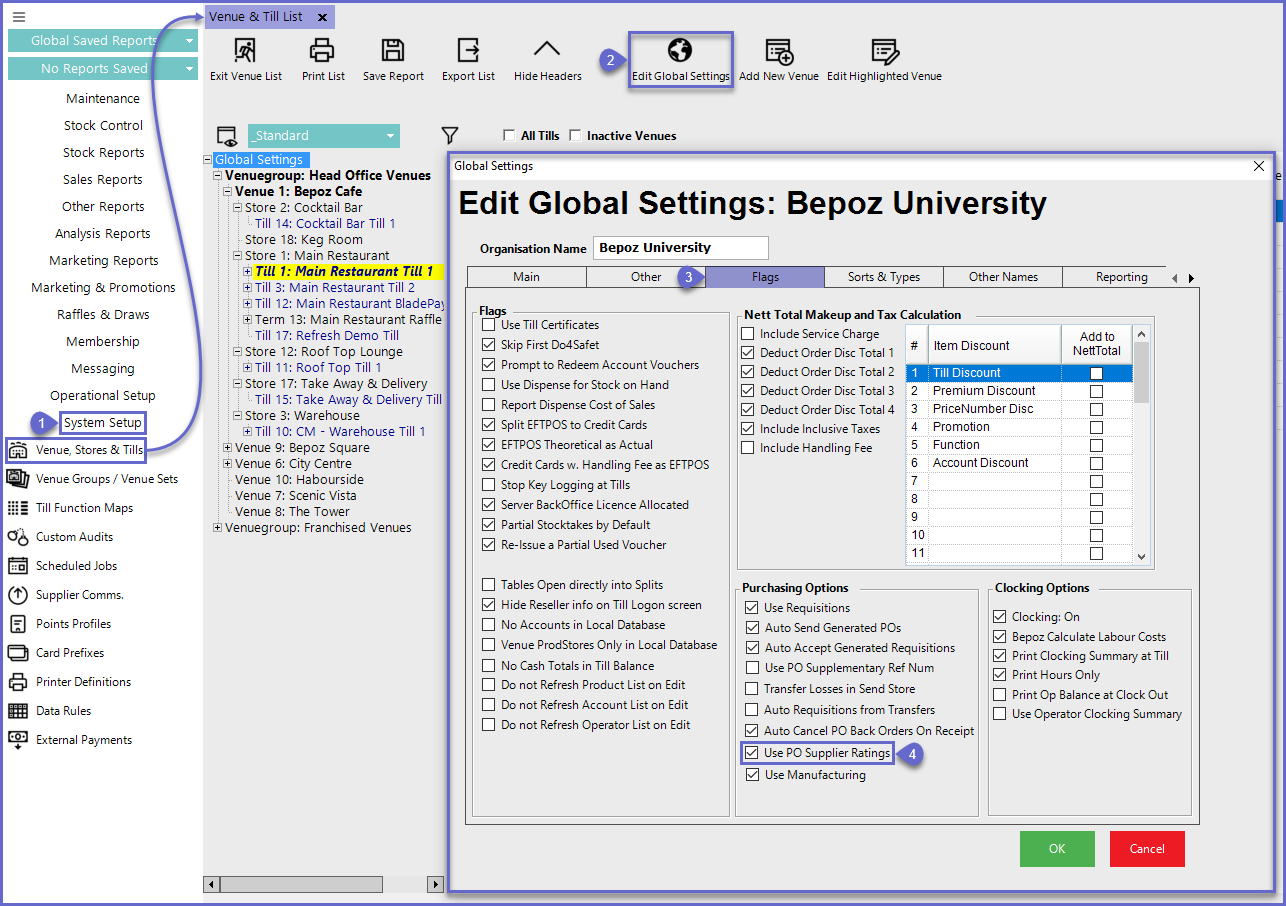
- To Enable Supplier Ratings, log in to BackOffice and follow the steps below:
- From the System Setup Menu, Select Venue, Stores and Tills
- Select the Edit Global Settings button
- In the Global Settings window, select the Flags tab
- In the Purchasing Option Section, enable the "Use PO Supplier Ratings" Flag
- When this flag is enabled, the Supplier Rating Field will be displayed on Purchase Order Receipts
Using Supplier Ratings
Received Purchased Orders
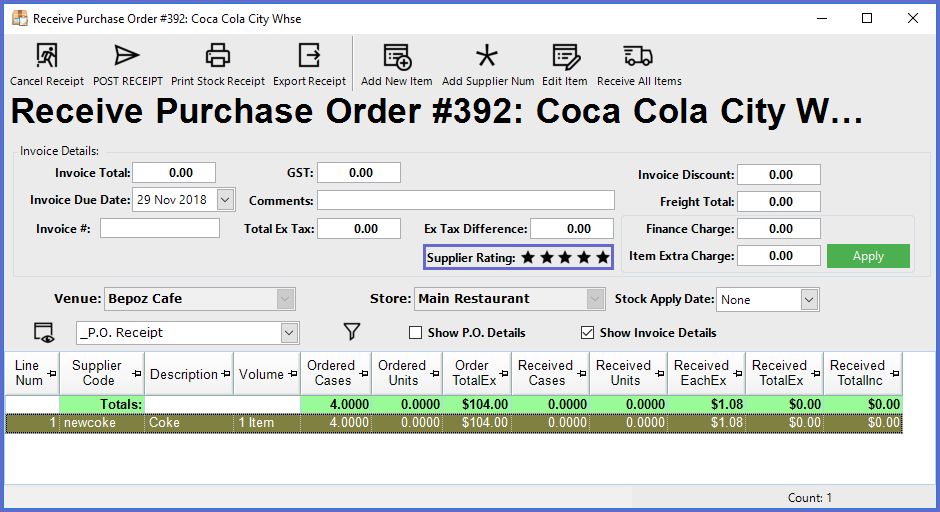
- When enabled, the Supplier Rating field will be shown on the P.O. Receipt form
- Operators can rate the Supplier Purchase Order from one (1) to five (5) stars
Stock Purchases Reports
- Supplier Ratings can be used in Reports which is useful for comparing Suppliers
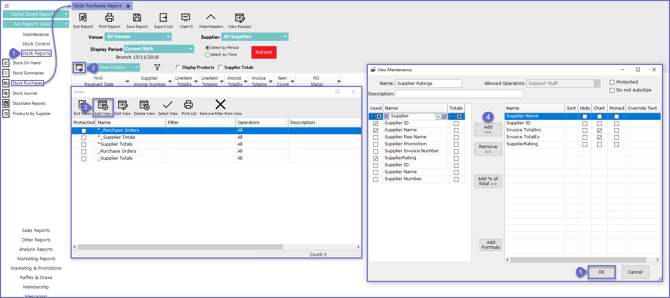
- To create a Report that Utilises Supplier Ratings, follow the steps below:
- After Logging on to BackOffice, From the Stock Reports Menu, select Stock Purchases
- Select the Views Button
- Select the Add View Button
- In the View Maintenance window, locate the SupplierRating option and any other Data Options to be included for the Report
- Select OK to complete the Process
- Reports can now be selected using the drop-down menu on the Stock Purchases Report Dashboard