
Overview
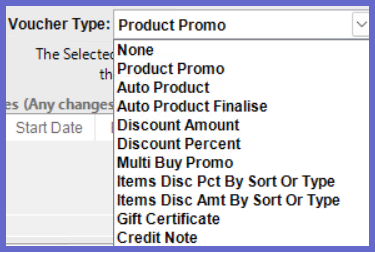
This article will outline the different Voucher Types within the "Voucher Setup" and the unique fields that appear in the voucher details section when each type is selected.
Prerequisite
- To access Voucher Setup features, the applicable Operator Privileges will need to be enabled
- Promotions: "Maintain Voucher Setups" Flag
- Promotions: "Issues/Edit Vouchers " Flag
- Marketing & Promotions Tab
Voucher Types
- All Voucher Types besides gift certificates will have an "Unlimited Use" Flag, as a unique field.
- ON: Voucher does not have a restriction on the number of times it can be used and can be used infinitely
- OFF: Voucher can only be used once
- Unlimited Use
- If selected will continue to Apply the Voucher and ignore the Qty to Give number
Product Promo
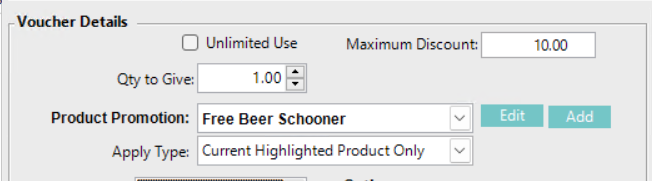
- Maximum Discount
- Maximum discount that will apply. If 0 is unlimited.
- Qty to Give
- The deduction amount of the voucher
- Product Promotion
- Product promotions contain a list of items that will be a part of the promotion
- This field is a dropdown list that displays the product promotions that can be applied to the voucher
- Edit: Select an option from the dropdown and click this button to configure an existing product promotion
- Add: Creates a new product promotion to be applied to the voucher
- Apply Type
- Current Highlighted Product Only
- Will apply to the highlighted sale item at the POS
- Lowest Priced Product Only
- Will apply to the Lowest price sale item in the Transaction Window
- First Matching Product in Sale
- Will apply to the First matching sale item in the Transaction Window
- All Products up to Qty Given
- Will apply to All matching sale items up to the voucher Qty to give in the Transaction Window
- Every Matching product in Sale
- Will apply to Every matching voucher sale item in the Transaction Window
- Current Highlighted Product Only
Auto Product
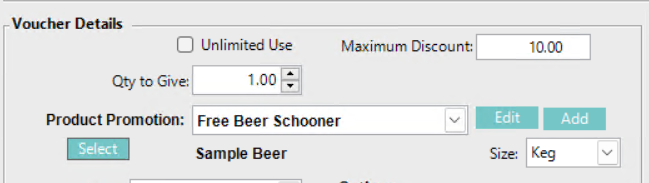
- Contain the same unique fields as Product Promo with one extra feature
- Clicking Select will open a products window. In this window search for a product and double-click your selection. That item will appear on the vouchers details section and if the item has different sizes then the dropdown list to the right will be populated and the user can select a size
Auto Product Finalise
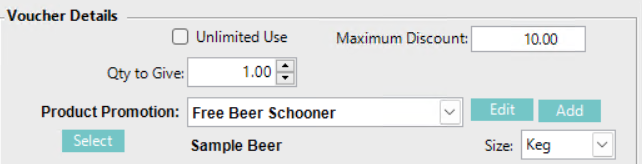
- Has the same unique fields as Auto Product but this voucher will need to be finalised with cash
Discount Amount

- Amount of Discount
- The deduction amount of the voucher
- Use the arrows to change the value or highlight the field and type a new value
- Order Disc. Totaliser
- The totaliser that is being used
- A dropdown list will display all 4 Order Discount totalisers set up in Backoffice
Discount Percent

- Maximum Discount
- Maximum discount that will apply. If 0 is unlimited.
- Discount Percentage
- The deducted percentage that the voucher will apply E.g. 50%
- Use the arrows to change the value or highlight the field and type a new value
- Order Disc. Totaliser
- Select one of the four order Discount Totalisers.
Multi Buy Promo
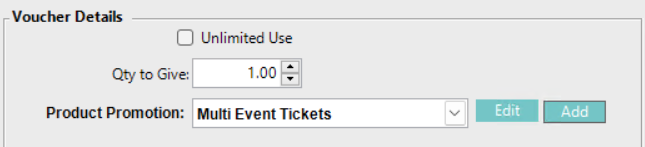
- Qty to Give
- The deduction amount that the voucher will apply E.g. $10.00
- Use the arrows to change the value or highlight the field and type a new value
- Product Promotion
- This field is a dropdown list that will display Multi-buy product promotions only
- Multi-Buy Promotions will have multiple products and if any combination of these products reaches the required quantity then the promotion is completed
- Edit: Select an option from the dropdown and click this button to configure an existing multi-buy promotion
- Add: Creates a new multi-buy promotion to be applied to the voucher
Items Disc Pct By Sort or Type
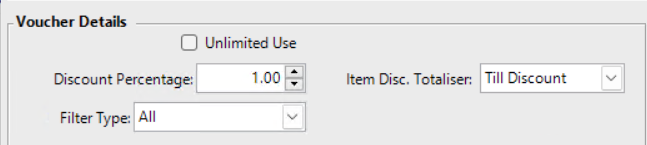
- Discount Percentage
- The deduction percentage that the voucher will apply E.g. 50%
- Use the arrows to change the value or highlight the field and type a new value
- Item Disc. Totaliser
- Select one of the 30 Item Discount Totalisers.
- Filter Type
- Allows users to set a limitation to what sort/type groups this voucher will apply to
- Sort/Type groups are used as categorisation and contain certain products
- When a selection beside "All" is used a new field will appear underneath. This dropdown will show all sorts or types that are set in Backoffice
Items Disc Amt By Sort or Type
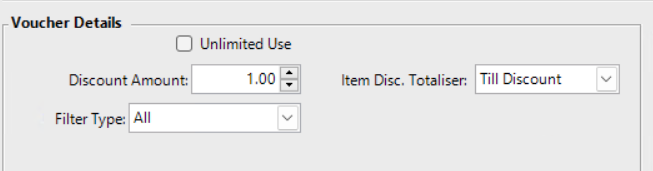
- Discount Amount
- The deduction amount that the voucher will apply E.g. $10.00
- Use the arrows to change the value or highlight the field and type a new value
- Item Disc. Totaliser
- Select one of the 30 Item Discount Totalisers.
- Filter Type
- Allows users to set a limitation to what sort/type groups this voucher will apply to
- Sort/Type groups are used as categorisation and contain certain products
- When a selection beside "All" is used a new field will appear underneath. This dropdown will show all sorts or types that are set in Backoffice
Gift Certificate
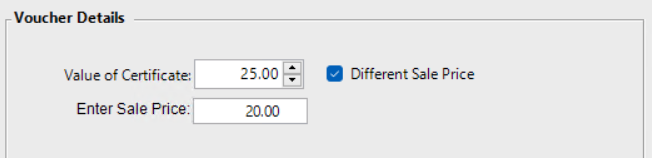
- Value of Certificate
- The value that is applied to the Gift Certificate
- Different Sale Price Flag
- Can set a different sale price from the input in the "Value of Certificate" field
- ON: "Enter Sale Price" field will appear where users can input a new selling price
- OFF: Gift Certificate sale price will use the same value as the "Value of Certificate" field