
Overview
Bepoz introduces a set of dedicated Kiosk SmartPOS functions that allow venues to remotely manage kiosk behaviour directly from Backoffice. These functions can be added to any Till Function Map and give operators quick access to kiosk controls without needing to access device settings individually.
These functions are visible when you filter the Till Function List by “Kiosk” and are designed exclusively for kiosk management workflows.
🔓 Accessing Kiosk Functions
To view and assign the kiosk-specific function buttons:
-
Open Backoffice
-
Go to System Setup > Till Function Maps
-
Select or create a Till Function Map
-
In the function list, filter by “Kiosk”
-
You will see four dedicated kiosk functions
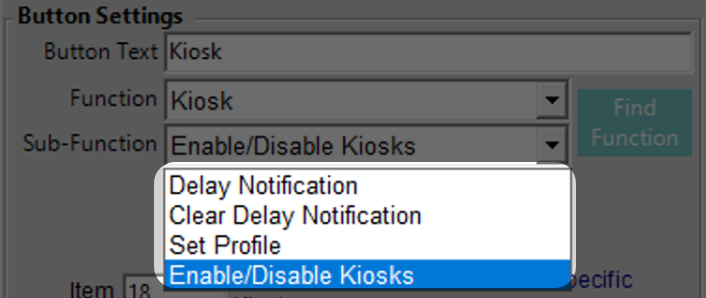
📌 Available Kiosk Function Buttons
1. Delay Notification
Temporarily places the kiosk into a delayed state.
-
Useful when the venue is experiencing high demand or needs a temporary pause on new orders.
-
Displays a notification to customers advising that ordering may be delayed.
-
Does not disable the kiosk — it simply informs customers of extended wait times.
1a. Configuration Options
Item
Determines which kiosk(s) the delay message applies to.
| Value | Behaviour |
|---|---|
| -1 | Prompt the operator at runtime to select a kiosk or group. |
| 0 | Apply the delay to all kiosks. |
| X | Apply the delay to a specific kiosk using its kiosk ID. |
Sub Item (Delay in Minutes)
Controls how long the kiosk delay should last.
| Value | Behaviour |
|---|---|
| -1 | Prompt the operator to enter the delay duration. |
| X | Predefined delay duration in minutes (e.g., 5, 10, 15). |
Key (Timeout)
Defines how long the delay notification should stay active before automatically clearing.
| Value | Behaviour |
|---|---|
| -1 | Prompt the operator to enter a timeout duration. |
| 0 | The delay notification remains active indefinitely until manually cleared. |
| X | Predefined timeout in minutes. |
2. Clear Delay Notification
Removes any delay message currently active on the kiosk.
-
Returns the kiosk to normal operation.
-
Ideal once the kitchen is caught up or the temporary pause is no longer needed.
2a. Configuration
Item
Determines which kiosk(s) will have their delay notification cleared.
| Value | Behaviour |
|---|---|
| -1 | Prompt the operator at runtime to select a kiosk. |
| 0 | Clear delay notifications on all kiosks. |
| X | Clear the delay notification on a specific kiosk ID. |
Sub Item
Not used for this function.
-
Leave blank
Key
Not used for this function.
-
Leave blank.
3. Set Profile
Allows operators to switch the active Kiosk Profile assigned to the kiosk.
-
Useful for switching between different kiosk configurations (e.g., Breakfast vs. Lunch profiles).
-
Ensures consistent profile behaviour without manually adjusting settings on each device.
-
Supports venues with multiple day-part menus or seasonal setups.
3a. Configuration
Item (KioskProfileID)
Determines which Kiosk Profile will be applied.
| Value | Behaviour |
|---|---|
| 0 | Prompt the operator to choose a Kiosk Profile at runtime. |
| X | Apply the specific Kiosk Profile ID entered (e.g., 1 = Breakfast, 2 = Lunch). |
Note: Profiles must be pre-configured in System Setup > Venue Stores & Tills > Kiosk Profiles.
Sub Item
Currently unused for this function.
-
Leave as 0.
-
No behaviour is associated with this field.
Key
Also unused.
-
Can remain blank.
4. Enable / Disable Kiosks
Provides a quick way to toggle kiosk availability.
-
Enable Kiosks: Brings a kiosk back online for customer use.
-
Disable Kiosks: Takes the kiosk offline immediately — ideal during outages, maintenance, or venue-specific reasons.
-
Prevents customers from starting new orders while disabled.
4a. Configuration
Item
Determines which kiosk(s) will be enabled, disabled, or placed into maintenance.
| Value | Behaviour |
|---|---|
| -1 | Prompt the operator at runtime to select the kiosk. |
| 0 | Apply the action to all kiosks. |
| X | Apply the action to a specific kiosk, where X is the kiosk ID. |
Sub Item (Enable / Disable Mode)
Controls what action is applied to the selected kiosk(s).
| Value | Behaviour |
|---|---|
| -1 | Prompt the operator at runtime to choose the action (Enable, Disable, Maintenance). |
| 0 | Disable the kiosk(s). Customers cannot place new orders. |
| 1 | Enable the kiosk(s). Normal operation resumes. |
| 2 | Set kiosk(s) to Maintenance Mode (kiosk is online but unavailable for ordering). |
Key
-
Not used for this function.
-
Can remain blank.
📘 Summary
These four function buttons empower venues to centrally manage kiosk behaviour directly through SmartPOS function maps. Whether adjusting availability, changing profiles, or communicating operational delays, these controls streamline onsite kiosk management while reducing the need for manual intervention.