
Overview
Service Charge Schedules provide a central location in bepoz BackOffice for configuring and managing surcharges such as weekend, table service and public holiday charges.
Service charges can be configured with different charge types, rates, priorities, schedules and application filters. They can also be limited to selected Venues, Stores, Tills, Account Profiles, and a range of Product options.
Prerequisites
Before configuring a Service Charge Schedule:
- bepoz version is v4.8.2.0 and beyond.
- If the site currently uses Pricing Schedules of Type = Service Charge, review and record the existing configuration before enabling the new Service Charge Schedule functionality. Refer to Migrating from Pricing Schedule Service Charges below.
- Contact bepoz Support to have the Service Charge Schedule functionality enabled for your site. Confirm Service Charge Totaliser Names are configured.
- Ensure the Operator has sufficient BackOffice privileges to access Operational Setup, manage Service Charge Schedules and access the required Venue, Store and Till information.
- Confirm the required surcharge rate, applicable Products, locations and scheduling rules before making changes.
‼️ Important: The Holiday calendar endpoint is currently returning a Bad Gateway response from the external service provider.
-
This is an upstream service issue and is not caused by bepoz.
Calendar-based public holiday scheduling is unavailable until the external service is restored.
Migrating from Pricing Schedule Service Charges
If your site currently uses Pricing Schedules with the Type set to Service Charge, review these schedules before moving to the new Service Charge Schedule framework.
The new Service Charge Schedule framework uses a separate configuration method and does not automatically migrate or remove existing Service Charge Pricing Schedules.
Before enabling and configuring the new framework:
- Review any existing Pricing Schedules where Type = Service Charge and record the rates, schedules and conditions that need to be retained.
- Recreate the required surcharge behaviour using the new Service Charge Schedule functionality.
- Test the new Service Charge configuration before using it in production.
- Once the replacement configuration has been confirmed, remove or deactivate the legacy Service Charge Pricing Schedules so that the old and new configurations are not left in place together.
⚠️ Warning: Do not delete all Pricing Schedules. Only Pricing Schedules configured with Type = Service Charge need to be reviewed as part of this migration. Pricing Schedules using other Types are unaffected.
When the new Service Charge Schedule functionality is enabled, Service Charge is no longer available as a selectable Pricing Schedule Type. New service charge scheduling should therefore be configured using Service Charge Schedule.
Configuration Steps
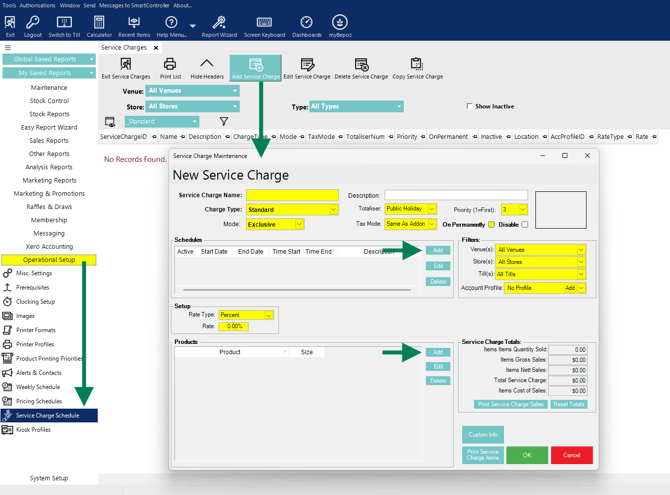
- Navigate to Operational Setup in bepoz BackOffice.
- Select Service Charge Schedule.
- Click Add Service Charge to create a new service charge.
- Enter the Service Charge Name and, if required, a Description.
- Select the required Charge Type:
- Standard — suitable for general surcharges such as weekend or public holiday charges.
- Table — applies according to table-based service charge rules.
- Price Level — applies according to the configured price level.
- Select the required Mode:
- Exclusive — only one applicable service charge is used.
- Additive — multiple service charges can apply when they use the same priority.
- Additive by Priority — allows applicable service charges with different priorities to be stacked.
- Enter the required Priority to control how the service charge interacts with other applicable charges.
- Review the remaining service charge settings:
- Select an existing Totaliser where the charge needs to be reported separately.
- Review Tax Mode and use the option appropriate to your site's tax configuration.
- Select Disable if the service charge is being prepared but should not yet be active.
- Select On Permanently when the service charge should remain available without an overall expiry date.
- Select the locations and customer scope for the service charge:
- Venue(s) — leave as All Venues or select the required Venues.
- Store(s) — leave as All Stores or select the required Stores.
- Till(s) — leave as All Tills or select the required Tills.
- Account Profile — select a profile when the charge should apply only to particular account customers.
- Select the required Rate Type, then enter the Rate for the service charge.
- Configure the Products section to determine which Products are included in the service charge. These may be set as
- Individual Products or Product Groups
- Keylists
- Sorts or Sort Groups
- Types or Type Groups
- Configure a schedule when the charge should apply only on particular days or at particular times:
- Click Add in the Schedules section.
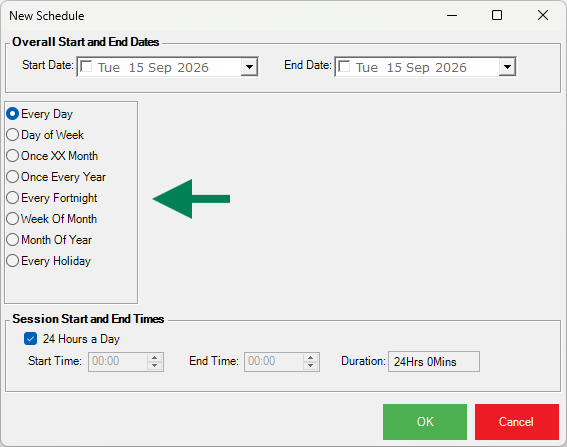
- Select the required recurrence, such as Every Day, Day of Week, Once Every Year, Every Fortnight, Week Of Month or Month Of Year.
- Leave Start Date and End Date unset when no date range is required.
- Set Start Date and End Date only when the recurring schedule needs to operate for a limited period. For example, these fields can be used for a surcharge that applies every Wednesday for three months.
- Select 24 Hours a Day when the charge applies for the entire scheduled day, or enter the required Start Time and End Time.
- Click OK to save the schedule.
- Avoid using calendar-based Every Holiday scheduling while the Holiday calendar service is unavailable.
- Click OK on the Service Charge Maintenance window to save the completed service charge.
Confirmation
After saving the Service Charge Schedule:
- Confirm the service charge is active and is not marked Disable.
- Confirm the required Venues, Stores, Tills, Account Profiles and Products are included.
- Confirm any recurring schedule reflects the intended days and times.
- Process a controlled test transaction and confirm the surcharge is applied at the expected rate.
- Confirm the surcharge does not apply outside the configured location, Product or scheduling rules.
- Contact bepoz Support if the Service Charge Schedule menu is unavailable, or assistance is required with calendar-based public holiday scheduling.
updated to: bepoz v4.9.0.6