
Overview
This article explains how to configure the new SmartPOS app on the Android S1F2 and S1E2L EFTPOS devices used with bepoz.
The SmartPOS app is used for MPOS and P@T devices. After a venue is upgraded to bepoz v4.8, the new app is sent automatically to the EFTPOS device. The previous app is removed automatically after a period of time.
Each venue receives an email report containing the device details needed for setup. You must open the SmartPOS app on each EFTPOS device and enter the correct settings for that specific device.
Note: The new SmartPOS app is version 1.4. Although the previous app has a higher version number of 2.0, it is the older application.
Prerequisites
-
Minimum bepoz version 4.8
Before you begin, confirm you have the email report from bepoz which includes:
| Name | SmartApiPort | SmartApiGroup | Serial | StoreName | VenueName |
-
Name - name of each device and its function, e.g. 'Floor 1 P@T 8888'
-
SmartApiPort - unique port for each device; this may be duplicated across different Venues within a multi-venue setup
-
SmartApiGroup - if a Group has been assigned
-
Serial - unique serial number per device, e.g. 'S1F2-000158224617018'
- StoreName - name of Store from bepoz BackOffice
- VenueName - name of Venue from bepoz BackOffice
The email will also contain the IP address(es) of the API Host specific for each Venue.
Match each EFTPOS device to the correct SmartAPI port by checking the serial number on the device:
-
Open the device Settings.
-
Select Device info.
-
Confirm the device serial number matches the serial number listed in the email.
Configuration Steps
Use the values below when configuring each device.
| Setting | Value |
|---|---|
| Protocol | http |
| Server | API Host IP address (will be sent with the email) |
| Port | SmartAPI port number matched to that device serial number |
| Mode | POS for MPOS or P@T for Pay at Table devices |
-
Reconfirm the correct device by checking the serial number. On each device, tap the Settings icon and check Device info.
-
Open the new SmartPOS app on the EFTPOS device. Confirm it is the correct version in the settings screen.

-
Enter http in Protocol.
-
Enter the API Host IP address from the email in Server.
-
Enter the SmartAPI port number assigned to that device in Port.
-
Select the required device function in Mode:
-
Select POS for MPOS devices.
-
Select P@T for Pay at Table devices.
-
-
Tap Test to confirm the device can reach the configured service.
-
Tap Save.
-
Tap Run to start the app after the settings have been saved and tested.
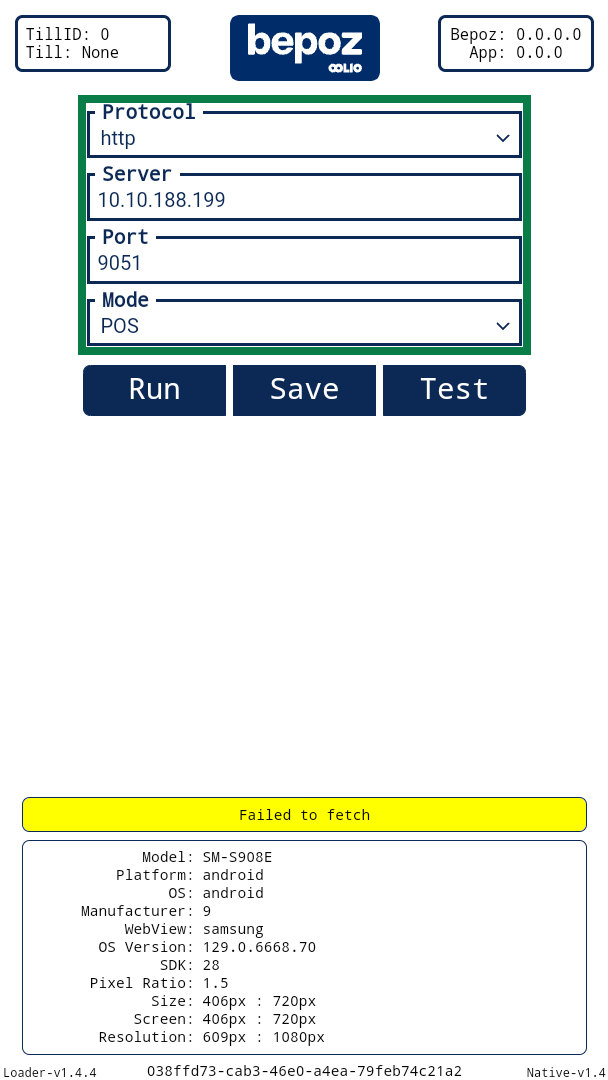
Note: Each EFTPOS device must use its own matched SmartAPI port number (Port), and must match the API Host IP address (Server). If the device is configured incorrectly, it will display "Failed to fetch" as shown in the image above.
Correct configurations will display "Seems OK!".
Caution: If the device is configured with the wrong Protocol or incorrect mode, SmartPOS transactions may fail or route to the wrong device behaviour.
Confirmation
After configuration is complete:
-
Confirm the Test function completes without a connection error.
-
Confirm the app opens normally after tapping Run.
-
Confirm the EFTPOS device is ready for its intended workflow:
-
MPOS device using POS mode
-
Pay at Table device using P@T mode
-
If the test fails, recheck Protocol, Server, Port, and Mode, then confirm the port number matches the correct device serial number. If you continue to experience connection issues, contact the bepoz Support Team.
updated to: bepoz v4.8