
Overview
Table Item Transfer lets staff move one or more items from an open table to a different table without transferring the whole table balance.
Use this function when a guest relocates to another table but other guests remain at the original table. When items are transferred, SmartPOS recalculates pricing, tax, discounts, service charges, and applicable promotions on both the source and destination tables.
Table Item Transfer is separate from Table Transfer, which moves the entire table balance.
Prerequisites
Before using Table Item Transfer:
- Confirm a Table Item Transfer button has been added for numeric table entry.
- Confirm a Table Item Transfer Alpha button has been added when using alphanumeric table numbers.
- Confirm the operator has the required table permissions or access to a manager code.
- Confirm both the source and destination tables are available to the operator.
The Table Item Transfer function is not included on the default layout automatically.
Internal Use Only: 🔗 Table Item Transfer Configuration
How Table Item Transfer Works
When items are transferred, SmartPOS recalculates:
- Product pricing
- Tax
- Discounts
- Service charges
- Multi-buy promotions
- Other applicable promotions
SmartPOS does not simply move the original dollar amount between tables.
When the source table already has split bills open, start the transfer from the Split Bill screen. The transfer applies to the split that is currently open.
Transfer Items from an Open Table
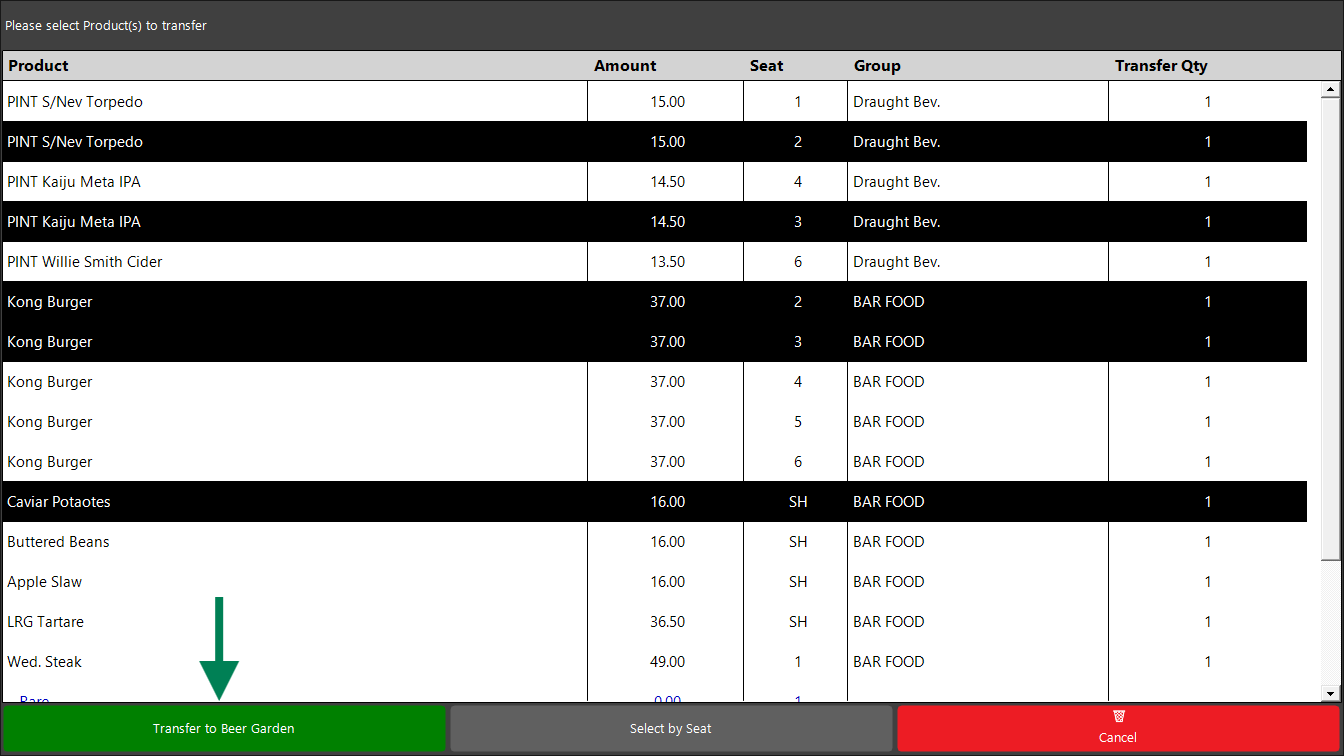
Selecting a product automatically includes its attached condiments or modifiers. Condiments and modifiers cannot be transferred separately from their parent item.
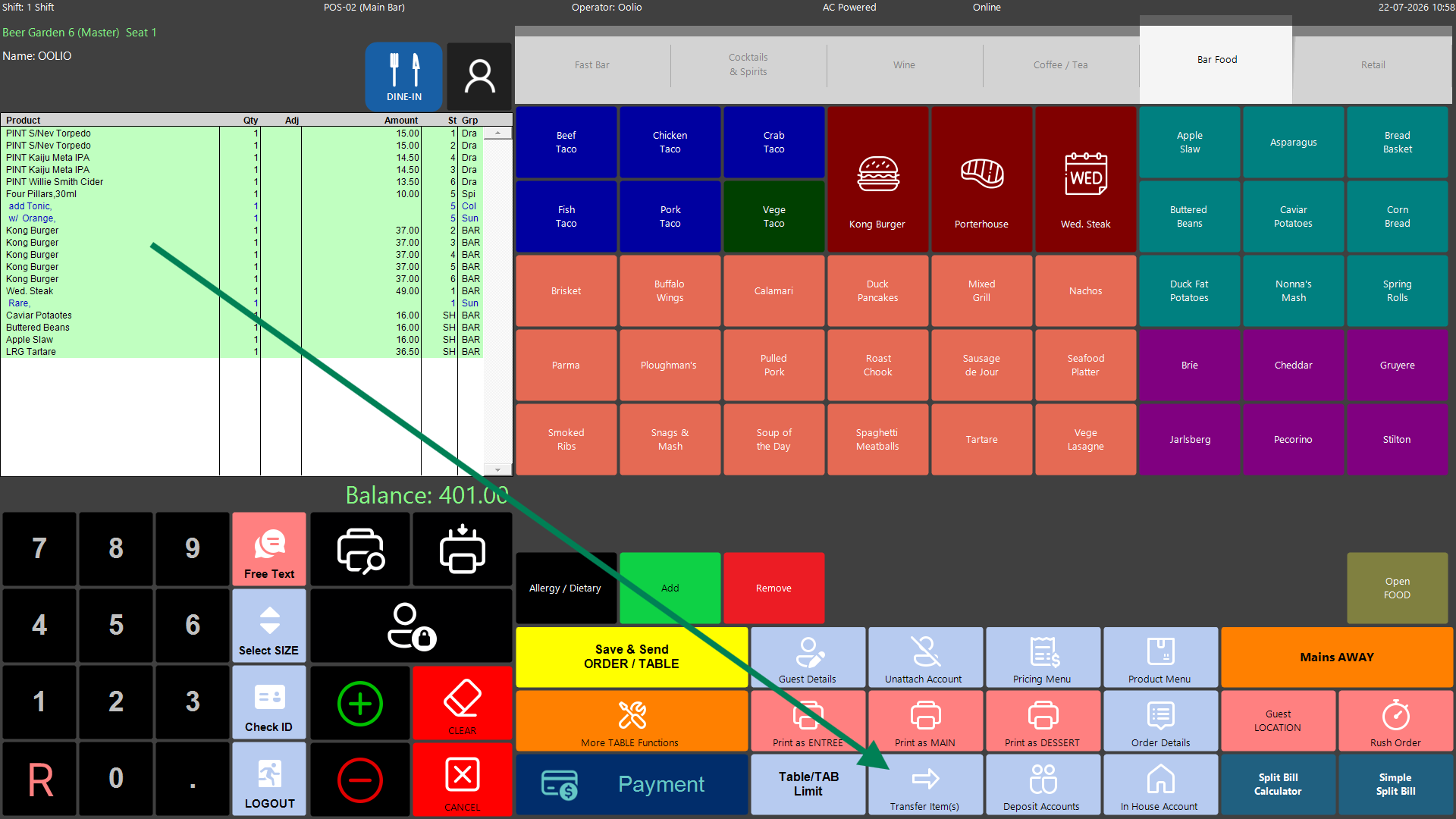
1. Manual Item Transfer
- Open the source table.
- Select Transfer Item(s) - function button may be called something different on the venue Function Map.
- Pick the items to move.
- Tap Transfer to [Table Group].
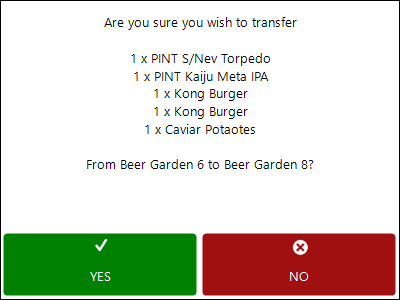
- Depending on the venue configuration, select the required destination table from keypad entry, the graphical map or the table list.
- Confirm the items to be transferred and the new table number.
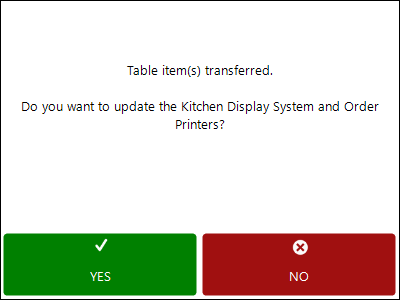
- Select either YES or NO to update the kitchen devices about the transfer.
2.Transfer by Seat Number
- Open the source table.
- Tap Select by Seat and enter the seat number when moving all items assigned to one seat.
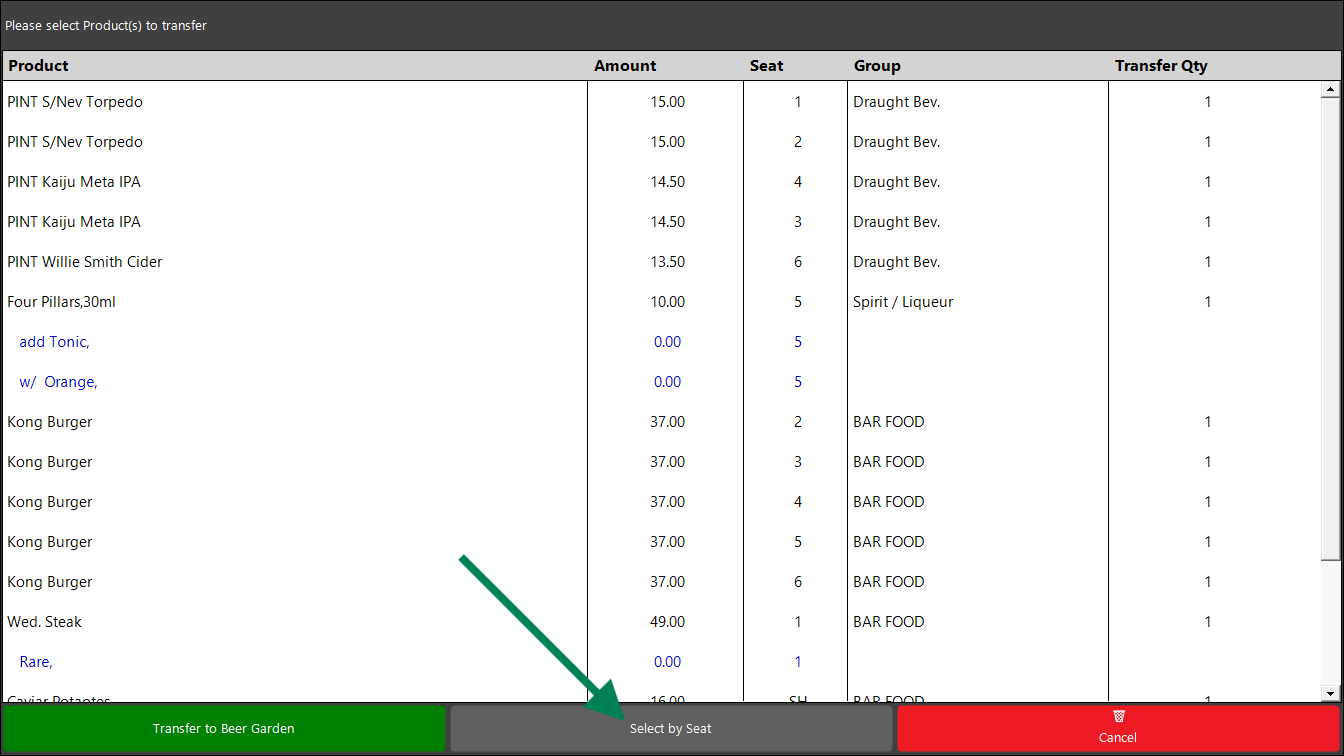
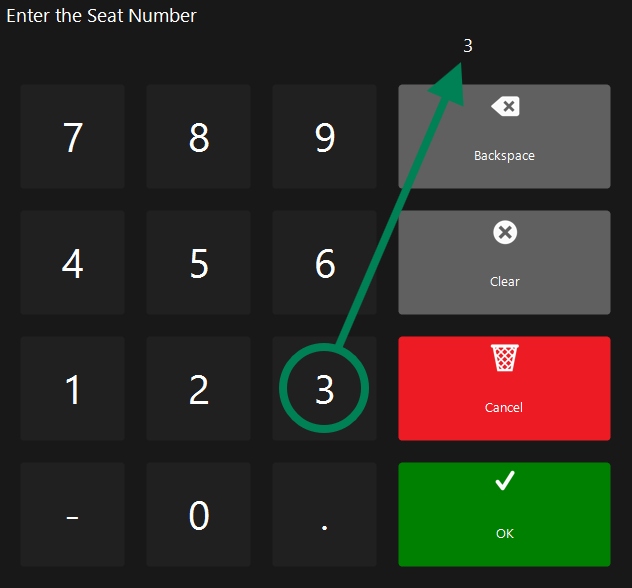
- Review the seat-selected items and tap Transfer to [Table Group].
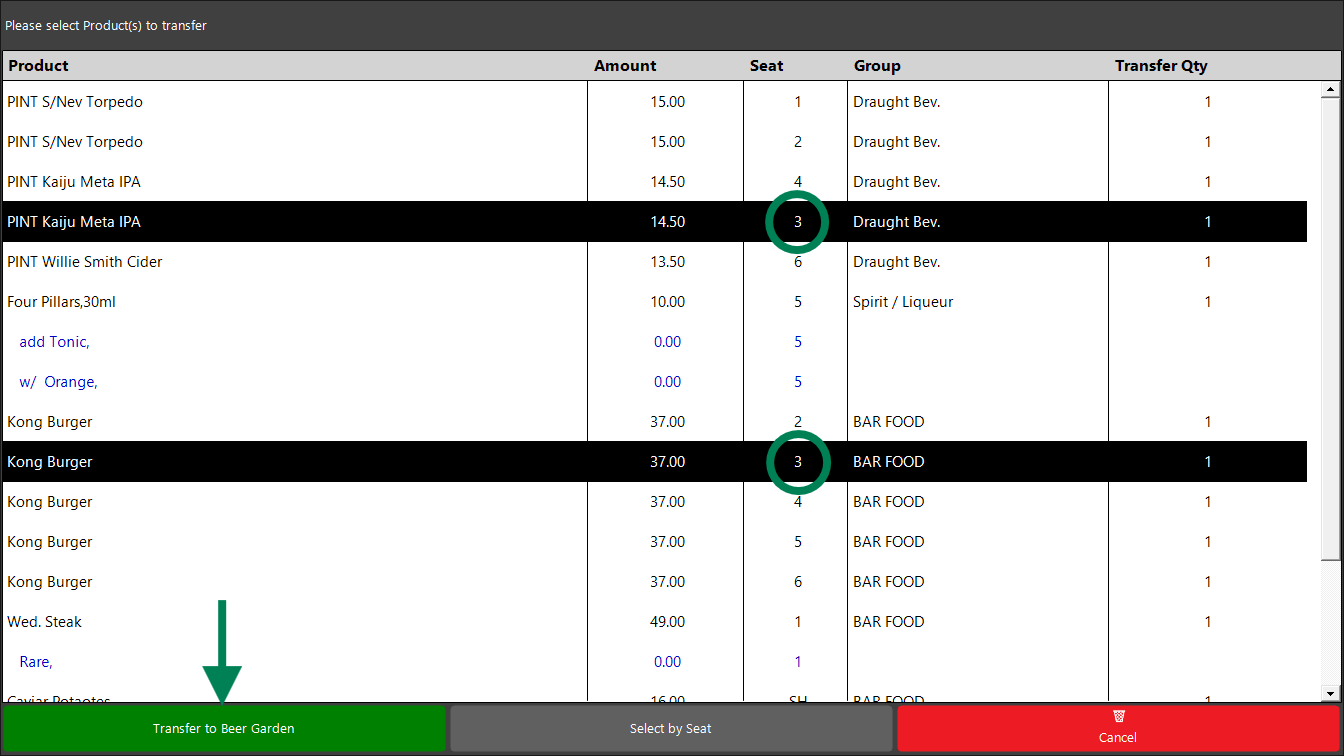
- Depending on the venue configuration, select the required destination table from keypad entry, the graphical map or the table list.
- Select the required destination split when the destination table already has open splits.
- Confirm the items to be transferred and the new table number.
- Select either YES or NO to update the kitchen devices about the transfer.
Transfer Items from a Split Table
When the source table already has split bills activated:
- Open the source table, this should display the Split Bill screen.
- Tap the required split (in the empty space) in the Split Bill screen.
- Tap Transfer Item(s) from the Split Bill screen.
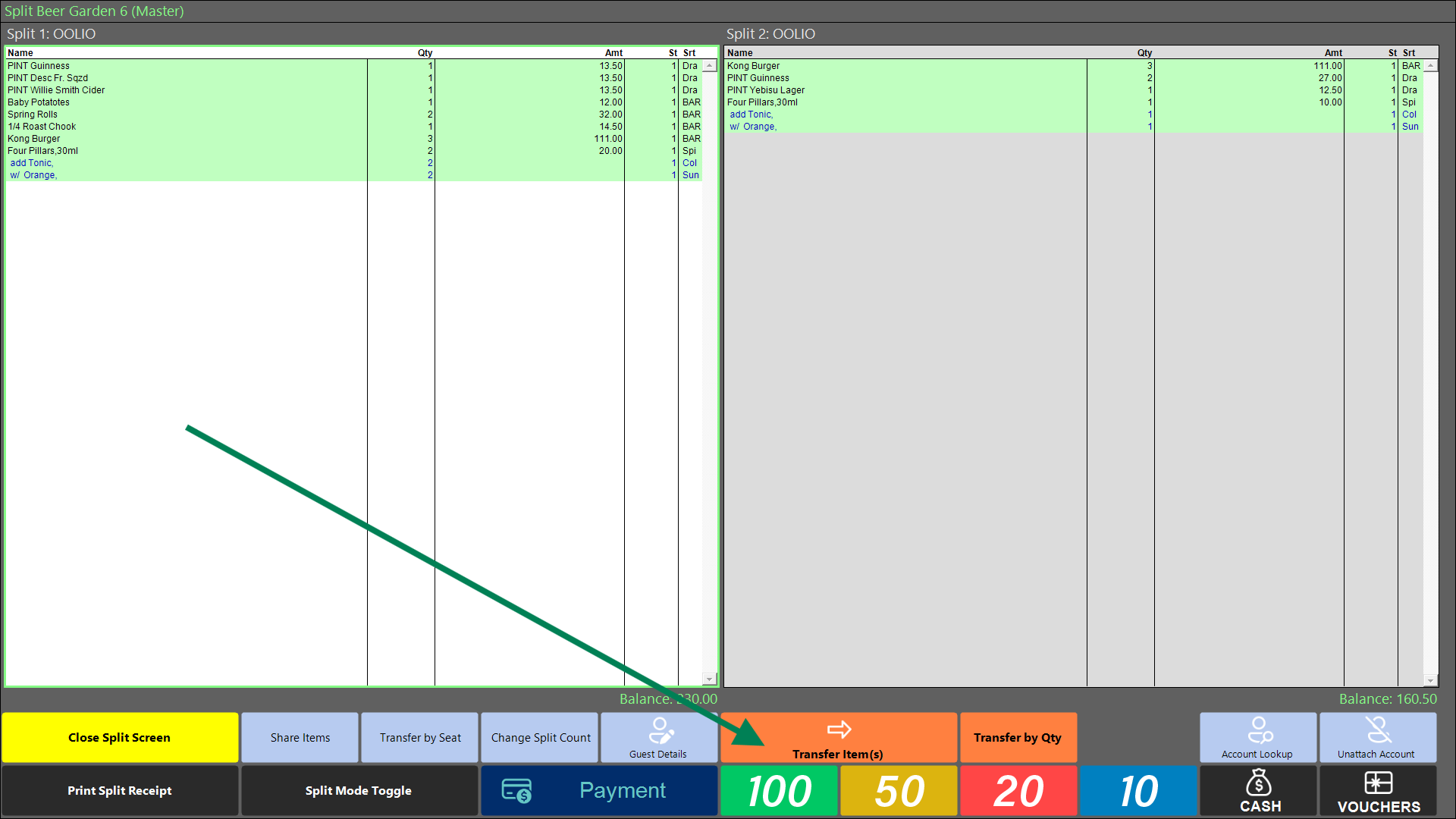
- Pick the items to move.
- Tap Transfer to [Table Group].
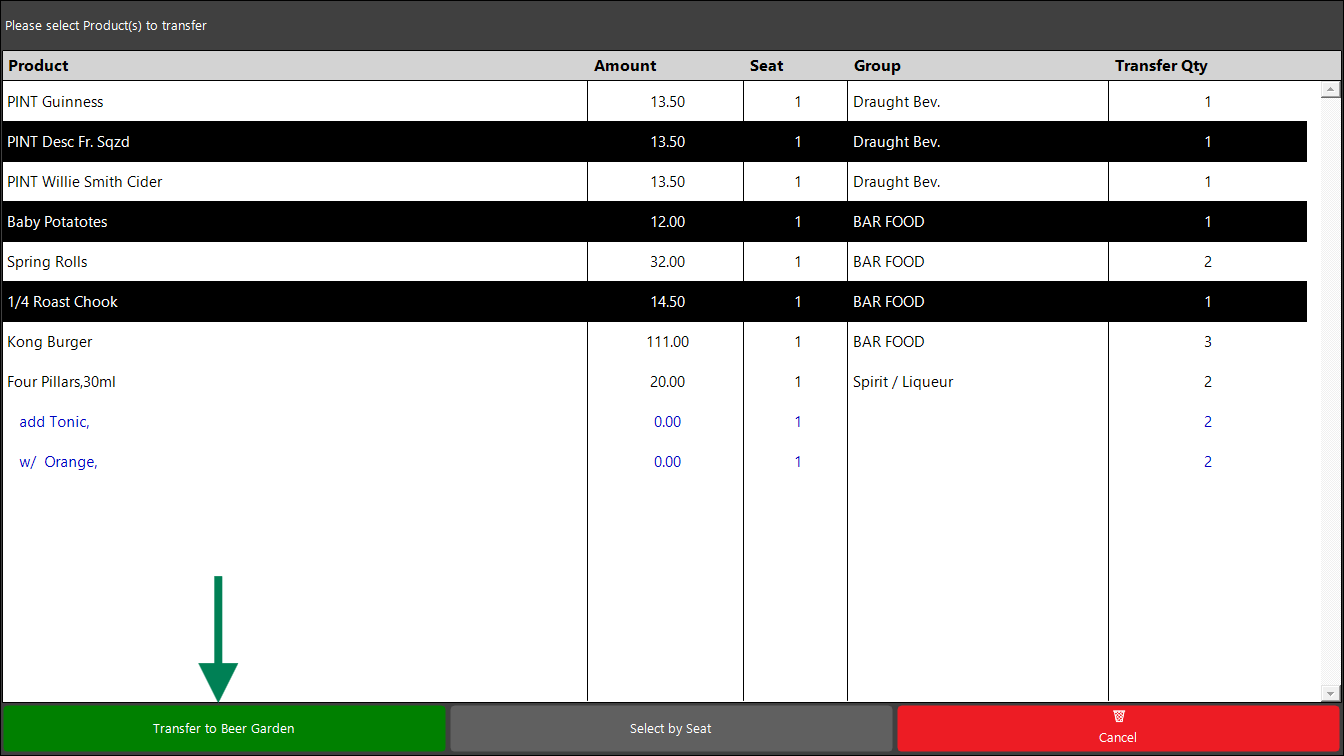
- Depending on the venue configuration, select the required destination table from keypad entry, the graphical map or the table list.
- Confirm the items to be transferred and the new table number. This pop-up will show the split number next to the table number, for example, 6:1.
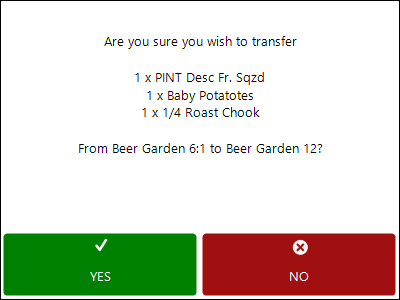
- Select either YES or NO to update the kitchen devices about the transfer.
Partial Line Quantity Transfers
Directly selecting part of a line quantity during Table Item Transfer is still in development and will be introduced in a later version.
In the current version, Table Item Transfer moves the complete quantity of the selected line.
To transfer only part of a quantity, use Split Bill to place the required quantity onto a separate split, then follow the steps in the Transfer Items from a Split Table section.
Until the split items feature is released, staff may correct a small number of affected items by removing them from the incorrect table or bill and adding them to the correct one. Confirm the change with both front-of-house and back-of-house teams to avoid service or kitchen confusion.
Kitchen Notifications
As outlined earlier, when completing a transfer, staff can notify the kitchen by:
- Printing a notification docket at the kitchen printer in venues without a Kitchen Display System.
- Sending an update to the Kitchen Display System and order printers in KDS-enabled venues.
Items already sent to the kitchen are not retracted from the source ticket. The transferred items appear as new items on the destination table’s ticket.
Known Limitations
- Whole line quantity only: The complete quantity of a selected line is transferred. To move a smaller quantity, first create a separate split using Split Bill, then refer to the Transfer Items from a Split Table section.
- Condiments remain with the parent item: Condiments and modifiers cannot be selected or transferred independently.
- Kitchen tickets are not retracted: Items already sent to the kitchen remain on the source ticket and appear as new items on the destination ticket.
- Accounts are not transferred: The account attached to a table does not move with an item transfer. Use Table Transfer when the account and full balance must move together.
- Destination splits must already exist: Items can be transferred into an existing destination split, but a new split cannot be created during the transfer.
- Mismatched order-level discounts block the transfer: Resolve different order-level percentage discounts on the source and destination tables before continuing.
- Offline mode restrictions apply: Items cannot be transferred between tables served by different tills or table groups when operating in offline or standalone mode.
- Negated or voided items are excluded: Negated and voided items are not included in the transfer, even when selected.
Confirmation
After completing the transfer, confirm that:
- The selected items no longer appear on the source table.
- The transferred items appear on the correct destination table or split.
- Pricing, tax, discounts, service charges, and promotions have been recalculated correctly.
- Kitchen staff received the required notification.
- Items that were not selected remain on the source table.
Related Articles
updated to: bepoz v4.9.0.4