
Overview
Oolio Pay is Oolio’s fully integrated EFTPOS payment solution, allowing you to accept card and contactless payments directly through bepoz. Payments are processed seamlessly between SmartPOS and the Oolio PINpad device, reducing errors, speeding up checkout, and simplifying reconciliation.
Oolio Pay is configured during installation by an Oolio technician. Once live, daily use is straightforward — payments, receipts and refunds are all managed through your POS and EFTPOS terminal.
This article explains how Oolio Pay works, how payments are taken, and how to handle refunds.
There are a number of different model PINpads which Oolio can supply and the software functionality can also vary according to the Acquirer, please be advised that this article covers fundamental operation only and some of the steps outlined below may differ slightly dependent on what hardware is at your Venue.
Before You Start / Prerequisites
Oolio Pay should already be set up before you begin using it.
During installation:
- Your Oolio Pay account is activated prior to go-live.
- PINpads are updated with the correct configuration.
- Each bepoz POS device is linked to its corresponding PINpad.
- bepoz version must be v4.6.2.8 or above
If EFTPOS is not available at checkout, contact Oolio Support before proceeding.
How Oolio Pay Integration Works
Step 1: Activation (Completed During Installation)
Oolio Pay device activation is completed during setup by the technician managing your installation.
As part of this process:
-
Each POS device is set up and configured with the model & serial number of its paired PINpad in BackOffice.
-
This ensures the POS and EFTPOS terminal communicate correctly.
- 3rd party connection software is installed for some PINpad models.
No action is required from you for this step. Oolio Pay should already be active when your system goes live.
Step 2: POS and PINpad Pairing
Unlike some other providers, Oolio Pay does not require a manual pairing process. The POS and PINpad connect automatically once the following conditions are met:
- Your Oolio Pay account is active and Merchant Codes have been generated
- EFT Devices are configured in BackOffice (as described in Step 1)
- The POS Till and PINpad are powered on
-
Both devices have a network connection (the PINpad may be using a 4G SIM) - alternately,
When these conditions are met, the POS and PINpad will connect automatically as the SmartPOS software starts.
Connection issues may pop-up error messages on the POS similar to this:
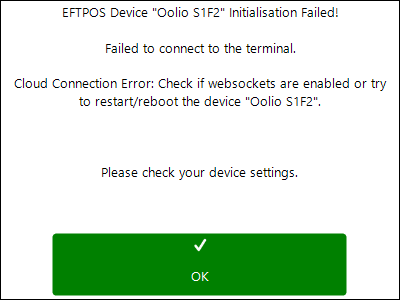
Otherwise, the two devices will be connected and ready for use.
Note: PINpads are to be updated to the latest configuration by the install technician prior to handover. Any changes/requests to the PINpad configuration will require further updates.
Example is for an Android S1F2 device - your PINpad(s) may be connected via USB and/or have an Ethernet cable.
Taking a Payment
To process a card payment:
-
Add items to the sale as usual in SmartPOS.
-
Select Payment/EFT at checkout.
-
SmartPOS sends the payment request to the Oolio PINpad. (If enabled, the Tips option will appear before the transaction amount.)
-
The customer taps, inserts/swipes their card, or presents their mobile wallet.
-
If required, the customer enters their PIN.
-
Once approved, the POS confirms the payment automatically.
The payment is recorded in the POS, sent to BackOffice and linked to the EFTPOS transaction for easy reporting and reconciliation.
Receipts
Receipts are issued based on your SmartPOS configuration and hardware:
-
Printed receipt (manual/auto)
-
Email or SMS receipt (if enabled)
All receipts include the business ABN, payment method, surcharge amount and transaction reference.
Not all PINpad devices supplied or installed by Oolio include a built-in receipt printer. Your device may differ depending on the model installed at your venue.
Refunds
1. Referenced Refunds (Recommended)
The preferred method for refunds is via the original transaction in SmartPOS.
-
Open Reprint Transaction/Sales History.
-
Locate the original transaction.
-
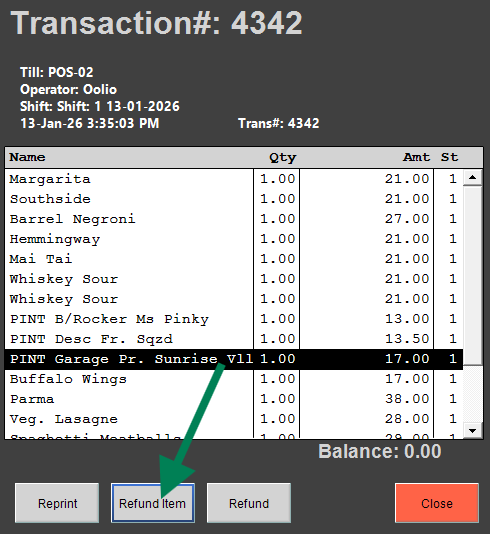
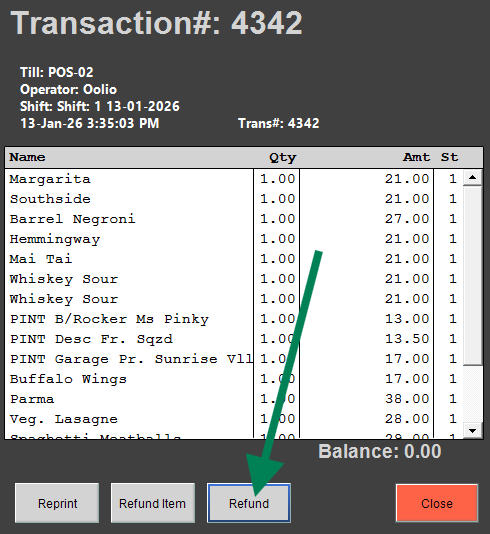
Select Refund Item (highlight item first) OR Refund (full transaction amount).
-
Follow the PINpad prompts to complete the refund.
The refund is processed back to the presented card and may take up to 5 business days.
Item refund - select item first and press 'Refund Item':
Full transaction refund - don't select anything and press 'Refund':
2. Unreferenced Refunds (PINpad Only)
Unreferenced refunds can be processed directly on the PINpad without locating the original sale; this type of refund generally needs to be requested for activation at your Venue.
To complete an unreferenced refund:
-
The user must have the 6-digit refund password
-
Refund details are entered manually on the PINpad
If you do not have the refund password, there is a good chance you are not permitted to perform unreferenced refunds, please discuss with your Venue Manager/owner.
3. Bistro Table Mode Refunds
Currently, bepoz is unable to process referenced refunds from payments taken when using the 'Bistro Table' mode:
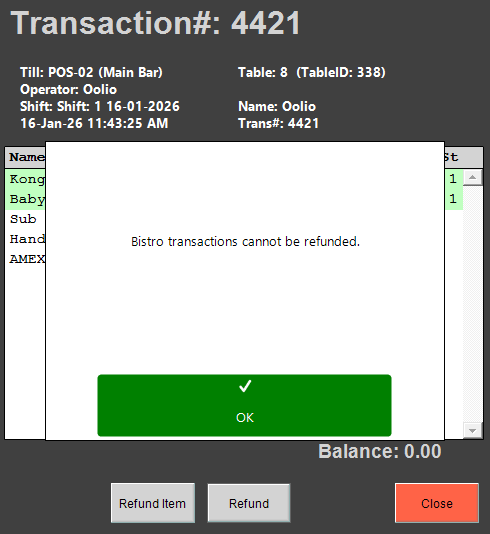
In this scenario, you will need to perform the refund via one of following methods:
- Log in to the Oolio Pay portal and reverse/refund the payment(s)
- A 'void/return' using the minus key and quantity of items
-
An unreferenced refund via the PINpad only
Troubleshooting
If payments are not processing:
- Ensure the POS and PINpad are powered on.
- Confirm both devices have a network connection (Ethernet, Wi-Fi or 4G).
- Check the small Cloud Icon at the top of the PINpad screen shows 'NEXO'.
- Test with a small amount from the POS (e.g. $1.00).
- Restart the POS software or reboot the entire device, and restart the PINpad.
- Contact our Support Team if the issue persists.
Key Points to Remember
-
Oolio Pay is activated during installation.
-
Pairing occurs automatically when SmartPOS starts.
-
Referenced refunds via POS are preferred.
-
Unreferenced refunds require a PINpad password.
End of Shift/Day EFTPOS Totals
It is recommended to reset the PINpad transaction totals at the end of each trading day, this helps with BackOffice reconciliation. Optionally, you can reset totals between shifts/services if your business is managed in that manner, e.g. counting out Cash Drawers between Lunch and Dinner periods.
You will require the PINpad Admin passcode to complete this process. On each PINpad:
-
Select the 'Transactions' icon (generally at the bottom of the screen)
-
Select 'Totals' - you should be prompted for the passcode at this point
-
Press the 'Printer' icon and then 'Print' when the pop-up appears
-
You may be be asked if you wish to reset the Totals after the print is complete, choose 'Yes' OR select the 'Reset Totals' option after printing.
updated to: bepoz v4.8.2.1