
Overview
MyPlace email communications rely on both Mailchimp and Mandrill to manage and send member-facing emails.
Why Mailchimp and Mandrill?
Mailchimp is used to create and manage the email templates used by the MyPlace mobile application. These templates support important member communications such as welcome emails, account confirmations, password resets, and other engagement emails.
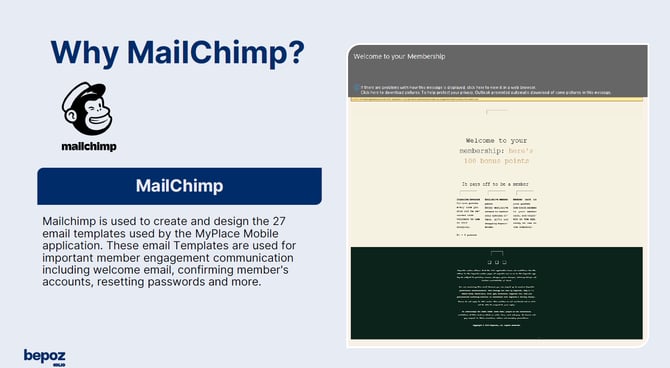
Mandrill, also known as Mailchimp Transactional Email, is the service that sends those emails. It works with Mailchimp to trigger and deliver the correct template when actions such as member sign-up, password resets, and other account-related events occur.
Prerequisites
Before you begin, confirm the following:
-
You have access to create and manage a Mailchimp account.
-
You can purchase or update the required Mailchimp plan.
-
You have access to the Mailchimp areas for Settings, Users, and Automations.
-
You can invite additional users to the Mailchimp account.
-
You have access to your sending domain, or assistance from IT or your domain administrator to complete domain verification.
-
You have the required MyPlace email communication requirements ready for setup.
Integration Setup Steps
-
Go to the MailChimp website and create an account.
-
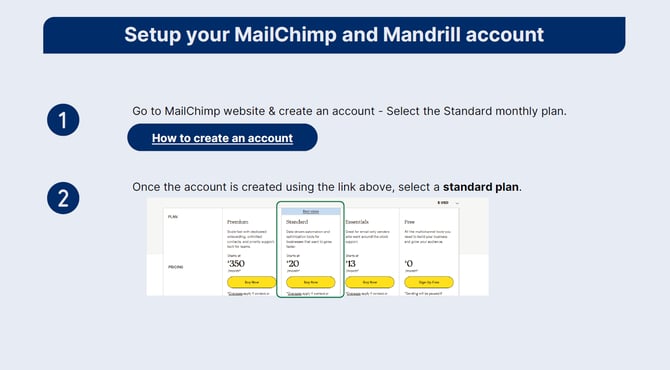
Once the account is created using the link above, select a Standard plan.
-
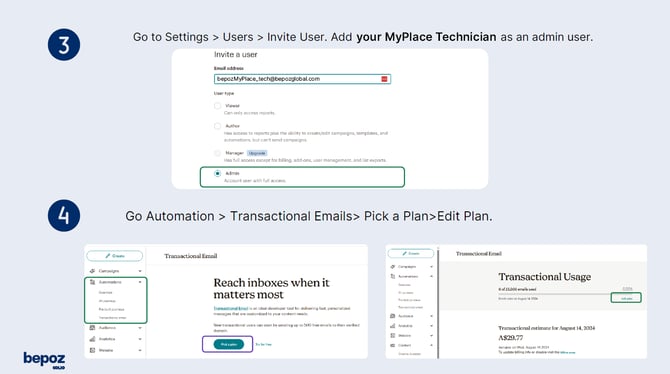
Go to Settings > Users > Invite User. Add your MyPlace Integration Technician as an Admin user.
-
Go to Automation > Transactional Emails > Pick a Plan > Edit Plan.
-
Add the Mandrill add-on and add 1 block.
-
Verify the domain in Mandrill. Go to the Mandrill website > Settings > Domains > Sending Domain. This may require IT or whoever manages your domain.
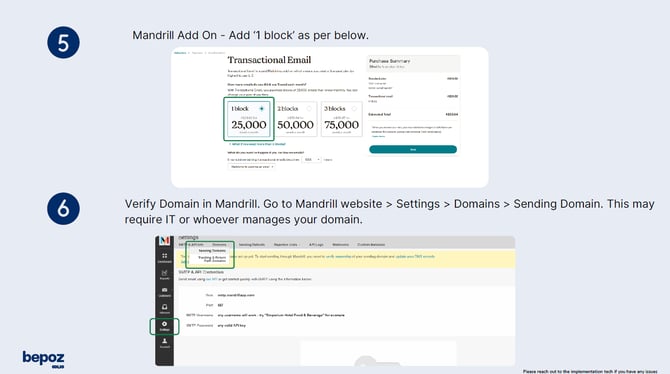
Note: Pricing shown is subject to change and was accurate at the time the screenshots were captured. Always refer to the Mailchimp and Mandrill websites for the most current pricing and plan information.
Testing and Validation
After setup is complete, confirm the following:
-
The Mailchimp account is on the Standard plan.
-
MyPlace Integration Technician has been added as an Admin user.
-
The Transactional Email plan has been enabled.
-
The Mandrill add-on includes 1 block.
-
The sending domain has been verified in Mandrill.
-
A MyPlace email event sends successfully.
Troubleshooting
If the setup does not complete successfully, check the following:
-
Confirm the Mailchimp account is using the correct Standard plan.
-
Confirm the invited admin user has accepted the invitation.
-
Confirm the Transactional Email plan has been selected and saved.
-
Confirm 1 block has been added to the Mandrill add-on.
-
Confirm the correct domain records have been entered for domain verification.
-
Confirm DNS changes have had enough time to propagate.
Additional Information
Mailchimp manages the templates used by MyPlace, while Mandrill handles the transactional email delivery. Domain verification may require assistance from IT or the team responsible for your domain.
updated to: bepoz v4.9.0