
Overview
This guide provides a hardware reference for the Senor S-HF2D barcode scanner used with bepoz. It explains the top button function, outlines basic usage notes, troubleshooting, and includes links to the available scanner manuals.
The S-HF2D V1 and V2 models are essentially the same in everyday operation; however, the correct User Manual supplied with the device should always be used when programming, configuring or troubleshooting the scanner. The model is denoted on the rear of the device.
A manufacturer description is also included in a dedicated section.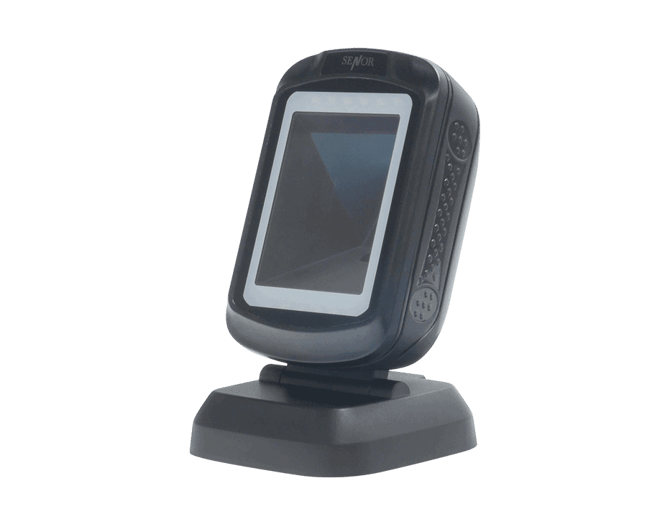
Prerequisites
Before using this scanner with bepoz, confirm the following:
-
The scanner is connected securely to the POS Till via the included USB-A cable.
-
The scanner is powered and ready to read barcodes.
-
The required model-specific scanner manual is available for reference if further configuration is needed.
Hardware Guide
Top button function
The top button allows the scanner to switch between two scanning modes, providing flexibility to suit different business requirements.
Green
LED on top button: 1D / 2D mode
Blue
LED on top button: 1D only
Where needed, the unrequired barcode type can be readily disabled by following the instructions in the S-HF2D User Manual.pdf (link is for model V1).
Basic usage notes
Oolio/Senor scanners are programmed prior to dispatch, they should operate correctly out of the box and require no further programming.
Ensure the scanner is positioned for clear line-of-sight to the barcode.
Keep the scanner window clean and free from dust or residue.
Test with a known working barcode if scan performance needs to be confirmed.
Manufacturer Description
The following text was provided from senortech.com.au and is included verbatim, it is specifically for the V2 model:
The S-HF2DV2 Hands-Free 2D Image Reader is a powerful tool for Automated Identification and Data Capture (AIDC) systems. Designed for speed and accuracy, this barcode scanner streamlines data capture for various industries, including retail, healthcare, and logistics. With its hands-free design, the S-HF2D enhances productivity and ensures fast, reliable performance in demanding environments.
-
Versatile Scanning: The S-HF2D supports both 1D and 2D barcode scanning, making it suitable for a wide range of applications. Its CMOS image reader captures barcodes from paper, mobile devices, and monitors, enhancing flexibility.
-
Efficient Electronic Screen Scanning: This reader easily scans barcodes from electronic screens, allowing quick data capture directly from mobile devices. As a result, it’s ideal for digital payment and customer interaction.
-
Rugged, Durable Design: Built to last, the S-HF2D is IP52-rated, providing resistance against dust and water splashes. Additionally, it withstands drops from up to 1.5 metres, ensuring consistent performance even in busy settings.
-
Easy System Integration: The S-HF2D integrates smoothly with various AIDC systems. It’s a flexible solution whether you’re upgrading existing technology or implementing a new setup.
Confirmation and Troubleshooting
Confirm the scanner is working correctly by scanning a known barcode into the required bepoz field or workflow. If the barcode reads successfully, the scanner is connected and responding as expected.
If an S-HF2D scanner is accidentally factory reset or reprogrammed during troubleshooting using the User Manual barcodes, it may no longer operate as originally supplied, because Senortech configures these units before dispatch. Restoring the correct settings will ensure the scanner continues to read UPC-A barcodes correctly, which are widely used in Australia.
Please contact the bepoz Support Team before you attempt to reprogram the device.
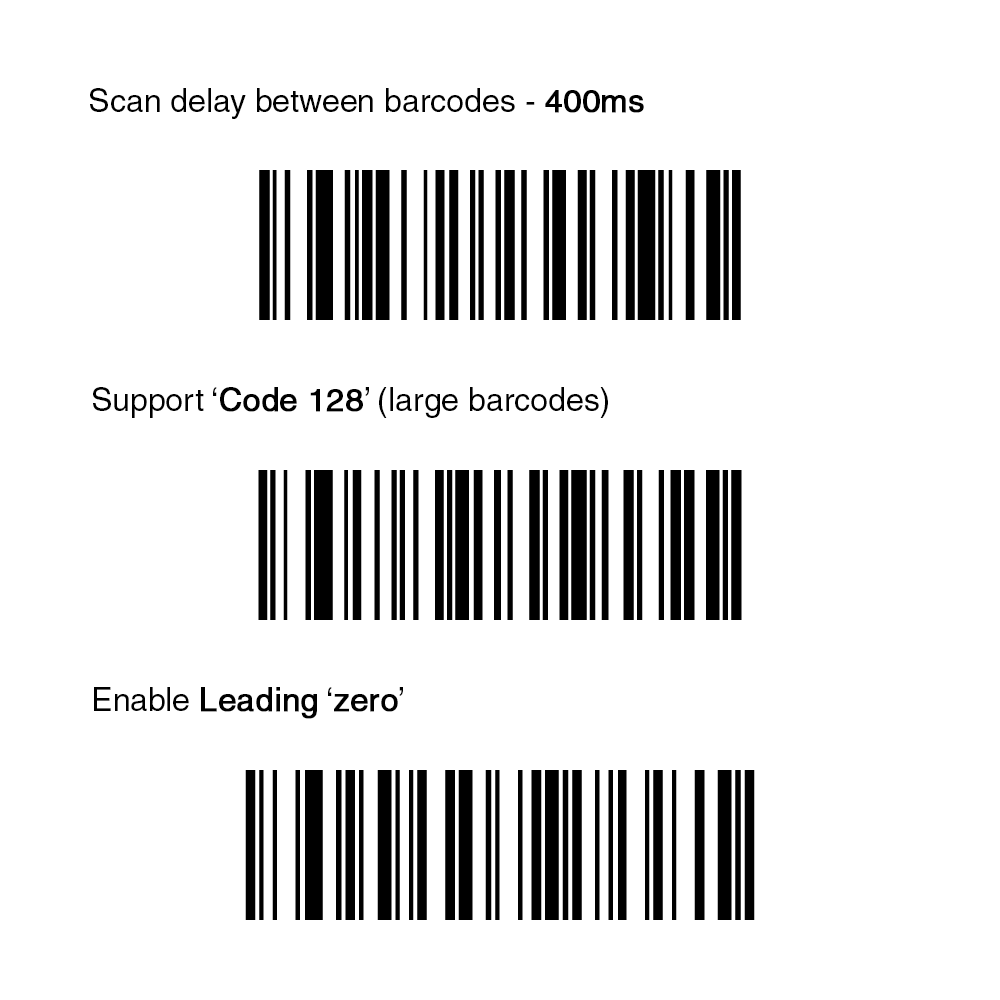
1. Steps for Enabling UPC-A barcodes:
** Ensure to use the program barcodes provided with the original device. **
Begin with a full reset, use: Restore the Factory Default Settings
Add an interval to avoid Repeated Barcode Detection (400-500ms recommended), may also be referred to as adding a Scan delay between barcodes
Enable Support 'Code 128' (large barcodes)
Enable Leading 'zero'
2. Testing
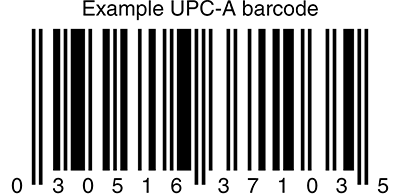
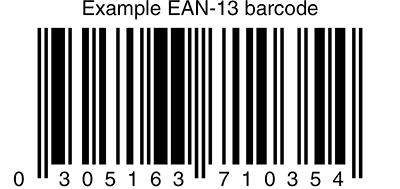
Connect the scanner to a Windows OS device and open the Notepad app. Use the below two barcodes for testing within Notepad:
Correct output for these two barcodes after Factory Reset should be exactly as below:
UPC-A = 030516371035
EAN-13 = 305163710354
Correct output for these two barcodes after successful reprogramming should be exactly as below:
UPC-A = 0030516371035
EAN-13 = 0305163710354
Lastly, you will need to program the scanner and disable converting UPC-A format barcodes into EAN-13 format, this is the extra, unwanted leading zero:
.png?width=480&height=161&name=image%20(2).png)
Product Specifications
| Scanning Method | 32 bit ARM MCU, omni-directional scanning |
| Scanning Speed | 300 scans/sec |
| Scanning Distance | 0 mm to 420 mm scanning distance, 5 mil resolution |
| Scanning Angle | Horizontal/Vertical ± 45° |
| Sensing | Auto-sensing, switch 1D only or 1D/2D compatible mode |
| Dimensions | 147 mm (H) x 86 mm (D) x 90 mm (W) |
*Product specifications are subject to change without notice
Hardware Manuals
Click the links below to access the various manuals for S-HF2D model V1 and V2:
updated to: bepoz v4.9.0