
Overview
This article explains the primary values used to reconcile the bepoz Till Summaries: Payment Details report with the Oolio Pay Dashboard.
The figures in the examples below are a demo Venue only.
Access the bepoz Report
- Log in to bepoz BackOffice.
- Navigate to Sales Reports.
- Open the Till Summaries report.
- Select the Venue, Display Period and TimeSpan, choose the _Payment Details view and set the Display Report By as required.
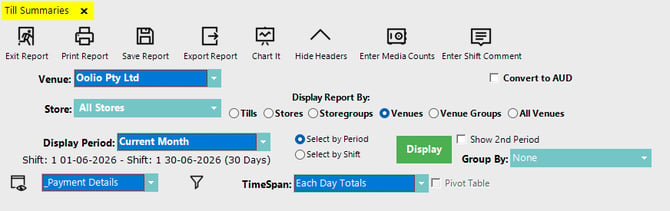
- Locate the required Summary Report EFT Amount.
Image below shows the full bepoz report.
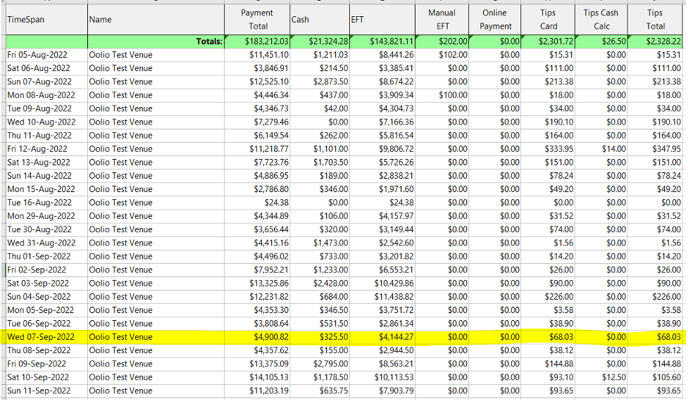
Image below shows the report isolated to Wed 07-Sep-2022.

On Oolio Pay Dashboard
- Log in to the Oolio Pay Dashboard.
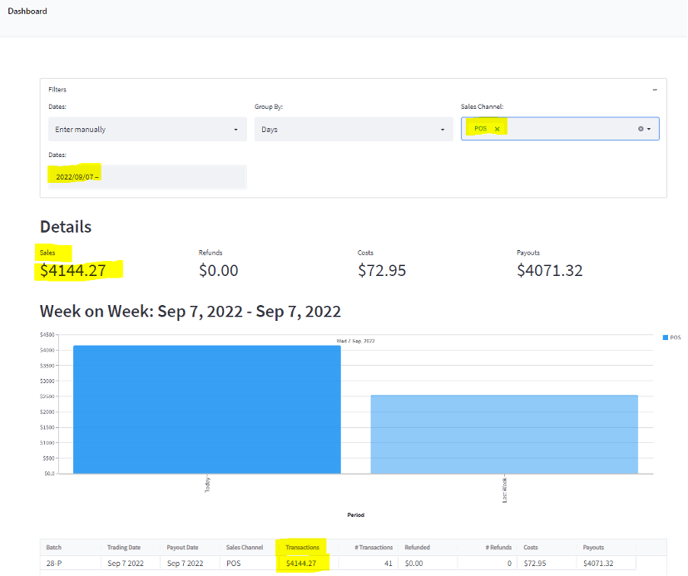
- Select the same reporting date used in the bepoz report.
- Locate the Dashboard Sales total.
- Confirm that the total matches the Summary Report EFT Amount in bepoz.
Image below shows the bepoz daily report on the Oolio Pay Dashboard.
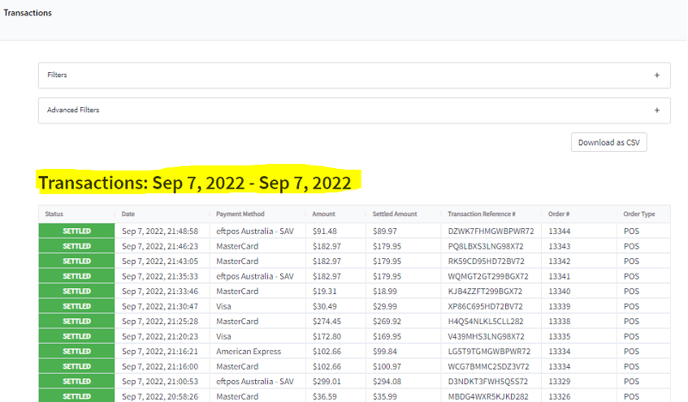
The individual transactions for the selected day can be viewed from the Transactions tab.
Image below shows bepoz transactions on the Oolio Pay Dashboard.
Reconciliation Summary
| bepoz | Oolio Pay Dashboard |
|---|---|
| Summary Report EFT Amount | Dashboard Sales |
| $4,144.27 | $4,144.27 |
The Summary Report EFT Amount in bepoz should equal the Dashboard Sales total in the Oolio Pay Dashboard.
Further Reading
For more information about the Oolio Pay Dashboard, refer to:
updated to: bepoz v4.9.0.4