
Prerequisites
- To access Sales Reports, the applicable Operator Privileges will need to be enabled
- Operator Maintenance 'Reporting' and 'Till Privileges' Tab
- Flag on All 'Sales Reports' options
- Manager Functions and Manager Override
- Operator Maintenance 'Reporting' and 'Till Privileges' Tab
Reprint Method 1 - Print Button
This method uses the standard PRINT button on the POS
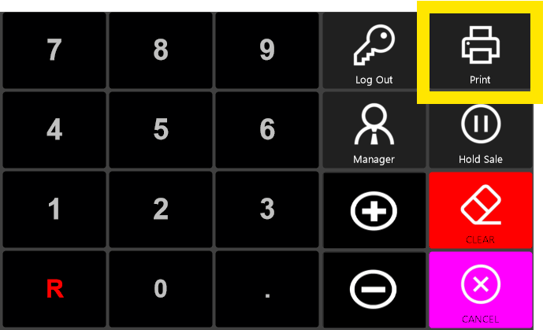
Note: This method can only be used to print the LAST completed Sale, if anything else use method 2 below.
Reprint Method 2 - Transaction List
Log in to the POS and go to the Manager Menu
Select Transaction List (Maybe called Reprint Previous sale) - Names could be different but the function is always Transaction List
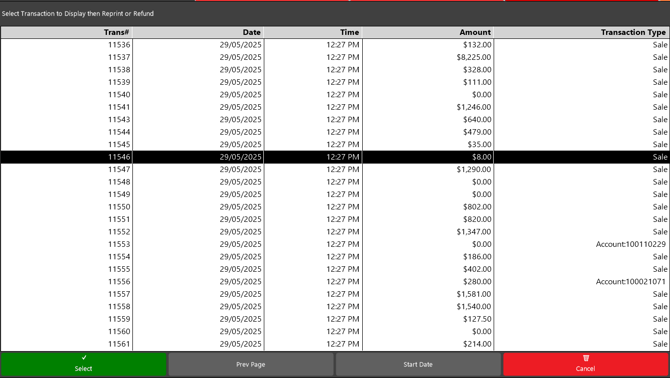
Find and highlight the required sale
Click Select
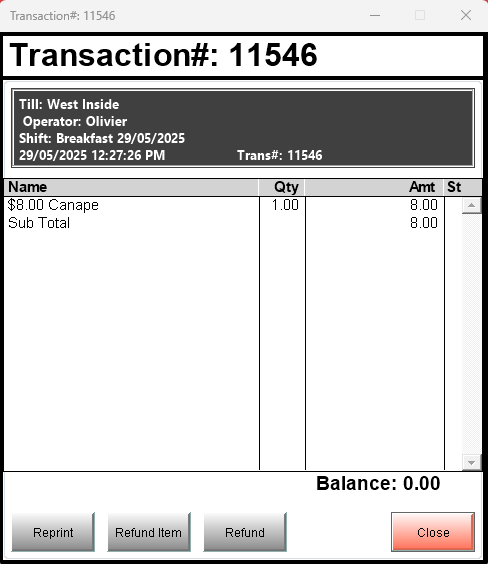
Click Reprint
The Receipt should now print to the Till's Receipt printer (Channel)