
Overview
It covers selecting the correct job class, assigning profiles, enabling or disabling kiosks through profile status, and setting up paired jobs to control each kiosk’s operating schedule.
Scheduled Job Configuration
-
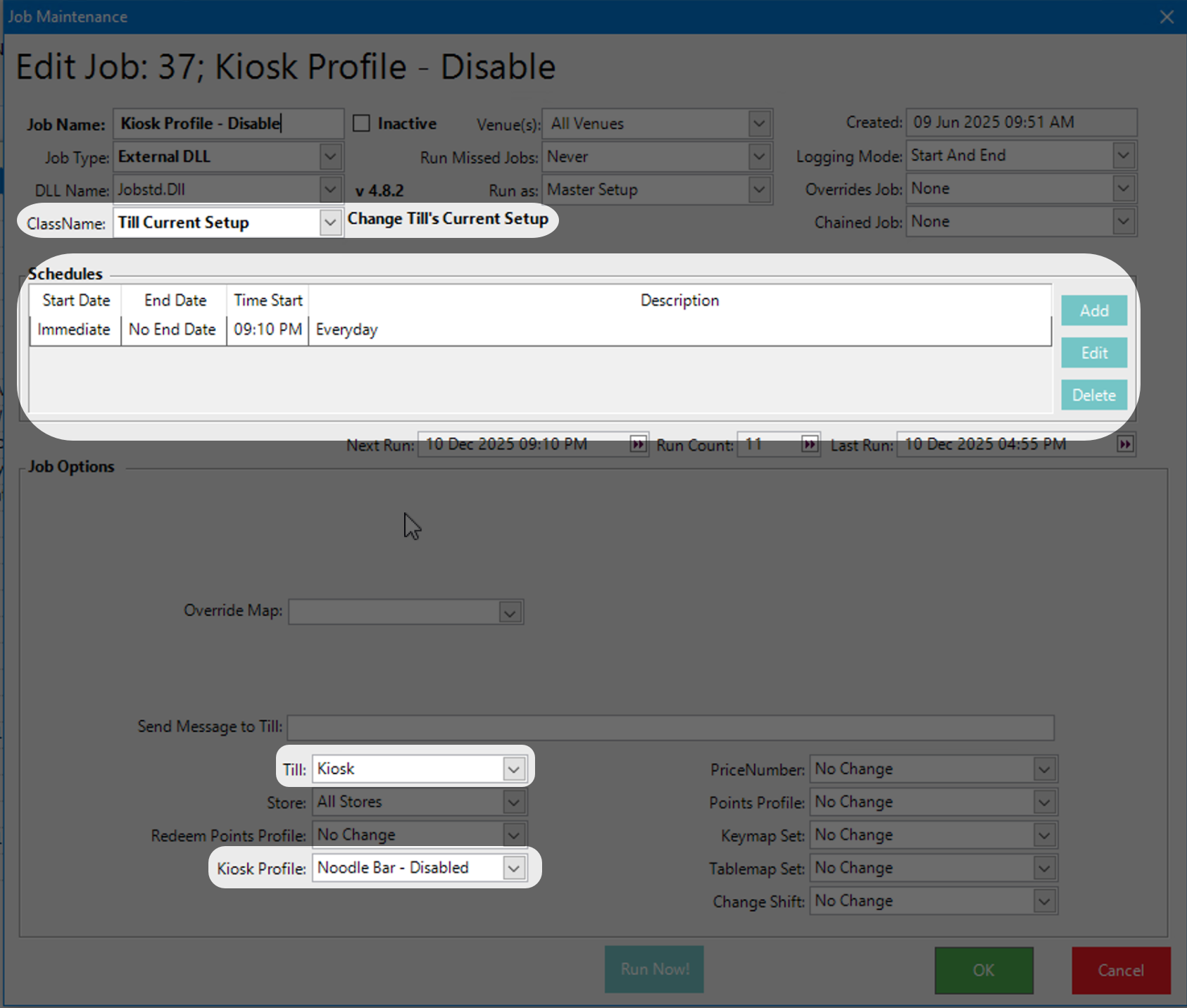
Class Name: TillCurrentSetup.
-
Kiosk Profile Assignment:
Within this job, you can choose:-
The specific kiosk workstation (till) the profile should apply to.
-
The Kiosk Profile you want that workstation to switch to at the scheduled time.
-
This allows you to target individual kiosks and automate their behaviour.
🔁 Profile Requirements
To ensure smooth automation, your Kiosk Profiles must be set up correctly:
-
To enable a kiosk through scheduling → use a profile with Status: Enabled.
-
To disable a kiosk through scheduling → use a profile with Status: Inactive.
This enables you to switch a kiosk on or off automatically via Scheduled Jobs.
🔄 One Job Per Kiosk Workstation
Currently, Scheduled Jobs support assigning a profile to only one kiosk workstation at a time.
This means:
-
If you want to automate profile changes for multiple kiosks, you must create one job per kiosk.
-
If you want a kiosk to turn on at a certain time and turn off at another, you will need two separate scheduled jobs:
-
One job scheduled to apply the enabled profile.
-
A second job scheduled to apply the inactive profile.
-
📅 Example Scenario
If you want Kiosk 1 to operate only between 9am and 5pm:
-
Job 1 — Enable Kiosk 1 at 9am
-
Assign the Enabled kiosk profile.
-
Target kiosk workstation “Kiosk 1”.
-
-
Job 2 — Disable Kiosk 1 at 5pm
-
Assign the Inactive kiosk profile.
-
Target kiosk workstation “Kiosk 1”.
-
Repeat the same pattern for Kiosk 2, Kiosk 3, etc.
✅ Summary
Using Scheduled Jobs with the TillCurrentSetup class, you can automatically manage kiosk behaviour across your venue. By configuring dedicated profiles and pairing them with targeted scheduled jobs, you can precisely control when each kiosk is active — ensuring consistent operation without manual updates.