
Overview
A KeyList is a collection of products created for use in other bepoz setups such as KeyMaps or Promotions.
Introduced in bepoz version 4.8.2, a KeyList Set is a group of KeyLists which can now be assigned for use in applications such as the new Kiosk. This feature allows you to group existing KeyLists into ordered sets, such as: Breakfast, Lunch or Dinner.
Previously, KeyLists could only be accessed through KeyMaps. With this enhancement, the new Key Lists and Sets menu (Maintenance) provides a centralised location to view, edit, and organise KeyLists from within BackOffice.
Prerequisites
This feature is only available in bepoz version 4.8.2 and later.
Before proceeding, confirm your site is running bepoz v4.8.2 or above.
Currently only used in Kiosk
Accessing Key Lists and KeyList Sets
-
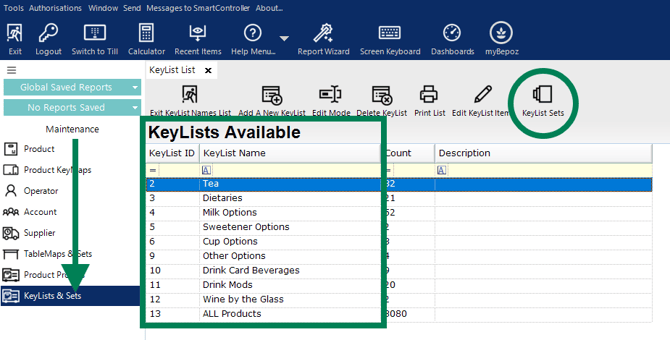
Open BackOffice.
-
Navigate to Maintenance.
-
Select Key Lists and Sets.
You will now see:
-
A list of all existing Key Lists
-
A new feature called KeyList Sets
-
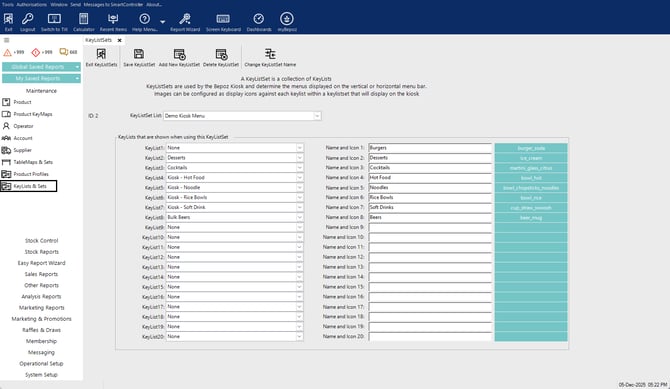
Selecting KeyList Sets opens a screen that mirrors the layout of KeyMap Sets, making it familiar to existing users.
Creating a KeyList Set
Step 1: Add a new KeyList Set
Click KeyList Sets.
Click Add New KeyList Set.
Enter a descriptive name for the set, such as:
Breakfast Menu
Lunch Menu
Dinner Menu
Step 2: Assign KeyLists to the KeyList Set
The left-hand panel displays slots numbered 1 to 20.
Each KeyList Set can contain up to 20 KeyLists.
For each slot:
Open the drop-down list.
Select one of your existing Key Lists.
Step 3: Customise KeyList labels
You can rename each KeyList Name for display purposes, similar to Override Text. This is particularly useful if you have named your KeyLists specific for their useage, e.g. Kiosk - Soft Drinks.
Override examples:
Kiosk - Soft Drinks (override to) → Soft Drinks
Hot Food (override to) → Hot Favourites
- 15ml Spirits (override to) → Spirits half nip
Note: This only changes what is displayed. It does not change the internal KeyList name.
Step 4: Add an image or icon
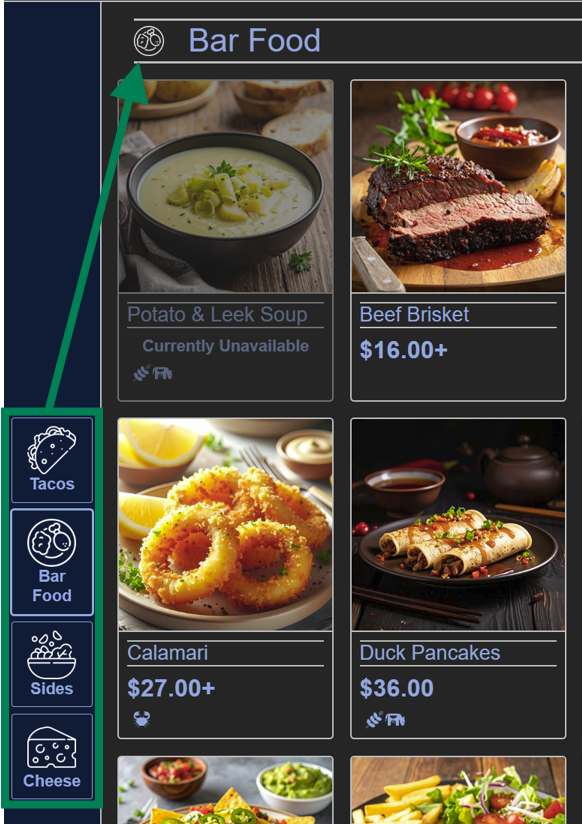
Each KeyList can be visually enhanced with an image or icon, which will appear on the Kiosk ordering screen in two locations:
- Fast navigation buttons on the left-hand side
- Next to the section header KeyList Names
Tip: Ensure icon colours contrast well with Kiosk setup colours (see image below Option B: Select Icon).
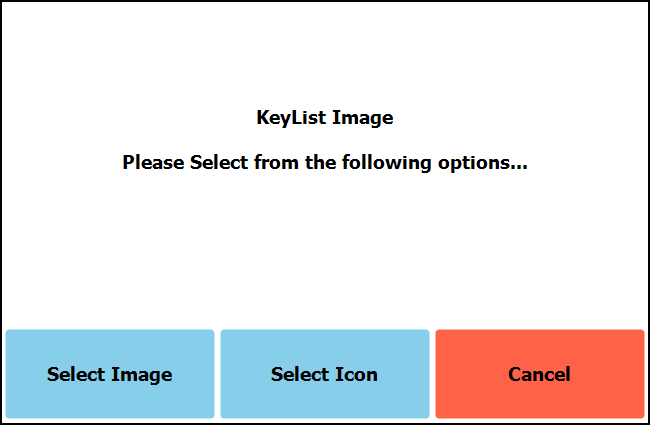
Click the green button at the end of the required KeyList:


Option A: Select Image
Click Select Image.
Choose an existing image from KeyList Images, or
Upload a new image using the standard BackOffice image workflow.
Confirm the image ID appears next to the category.
Option B: Select Icon
-
-
Open the Font Awesome website.
-
Search for an icon such as burger, drink, or noodles.
-
Click the required icon.
-
Copy the icon code shown for the icon, for example
fa-solid fa-burger. -
Paste the code into the Icon field in BackOffice.
-
Confirm the icon name appears automatically if the code is valid.
-
Step 5: Save the KeyList Set
After you have:
Ordered the categories
Customised the display names
Added images or icons
Click Save.
Expected Result
Once saved, the KeyList Set is available as an ordered group of KeyLists that can be used in supported bepoz workflows, including Kiosk-related menu configuration.
updated to: bepoz v4.9.0.1