
🗂 Overview
This feature enables you to group existing Key Lists into ordered sets, such as Breakfast, Lunch, or Dinner, ensuring the kiosk menu appears exactly as intended.
With this enhancement, the new Key Lists and Sets menu provides a centralised location to view, edit, and organize Key Lists specifically for kiosk use.
Keylist Sets allow you to create the menu structure displayed on the kiosk by organising your Key Lists into vertical categories.
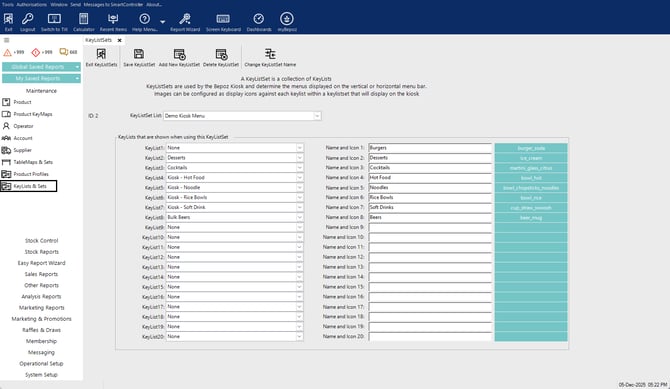
Each Keylist Set represents a full menu layout, for example:
-
Breakfast Menu
-
Lunch Menu
-
Dinner Menu
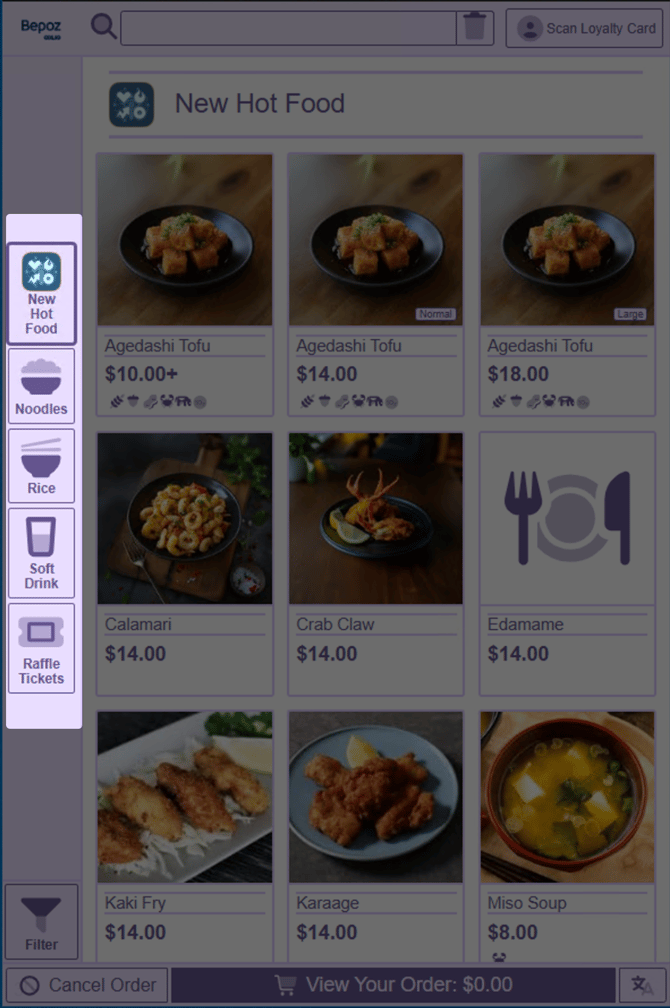
🧭 The order of Key Lists within the set determines the sequence in which categories appear on the kiosk screen.
➕ Creating a New Keylist Set
Step 1: Add a Set
-
Click Add New Keylist Set.
-
Enter a descriptive name for the set, such as:
-
Breakfast Menu
-
Kiosk – Main Menu
-
Late Night Menu
-
Step 2: Assign Key Lists to Categories
-
The left-hand panel shows slots numbered 1–20.
-
For each slot:
-
Open the drop-down.
-
Select one of your existing Key Lists.
-
This order will determine the vertical category layout on the kiosk:
|
Position |
Kiosk Display Example |
|---|---|
|
1 |
New Hot Food |
|
2 |
Noodles |
|
3 |
Rice |
|
4 |
Soft Drinks |
|
5 |
Raffle Tickets |
Step 3: Customize Category Labels
You can rename each Key List label for kiosk-specific display purposes.
Examples:
-
Soft Drinks → Cool Drinks
-
Hot Food → Hot Favourites
🔒 This change only affects what’s shown on the kiosk—it won’t alter internal naming.
Step 4: Add an Image or Icon
Each category can be visually enhanced using an image or icon.
Option A: Use a Back Office Image
-
Click Image.
-
Choose an existing image from Keylist Images, or
-
Upload a new one using the standard Back Office workflow.
-
Once selected, the image ID will appear next to the category.
Option B: Use a Font Awesome Icon
-
Visit: http://fontawesome.com
-
Search for icons (e.g., burger, drink, noodles).
-
Click on your chosen icon.
-
Copy the icon code from the top-left (e.g., fa-solid fa-burger).
-
Paste the code into the Icon field in Back Office.
If valid, the icon name will appear automatically.
Step 5: Save the Keylist Set
After you've:
-
Ordered the categories
-
Customized the display names
-
Added images or icons
Click Save.
A confirmation message will appear, and the Keylist Set will now be available for selection in your Kiosk Profile configuration.
🧩 How Keylist Sets Are Used in the Kiosk
Once assigned to a Kiosk Profile, a Keylist Set determines:
-
The order in which menu categories appear
-
The labels displayed to customers
-
The images or icons shown per category
-
The overall navigation structure of the kiosk menu
Bepoz v4.8.2.3