
Overview
This article explains how to set up and manage Kiosk Profiles in BackOffice, allowing venues to centrally control kiosk settings, menus, themes, and behaviours across multiple devices.
Kiosk Profiles were introduced in bepoz version 4.8.2.0 to simplify the management of multiple kiosk devices. Rather than configuring each kiosk individually, venues can create centralised configuration profiles and apply them to any number of kiosks. This helps maintain a consistent ordering experience across all devices and reduces configuration overhead.
Kiosk Profiles also integrate with scheduled jobs, allowing venues to automate menu changes (e.g., breakfast → lunch → dinner), along with operational behaviour across all linked kiosks.
Accessing Kiosk Profiles
BackOffice Menu Location
Open BackOffice.
Navigate to Operational Setup.
Select Kiosk Profiles.
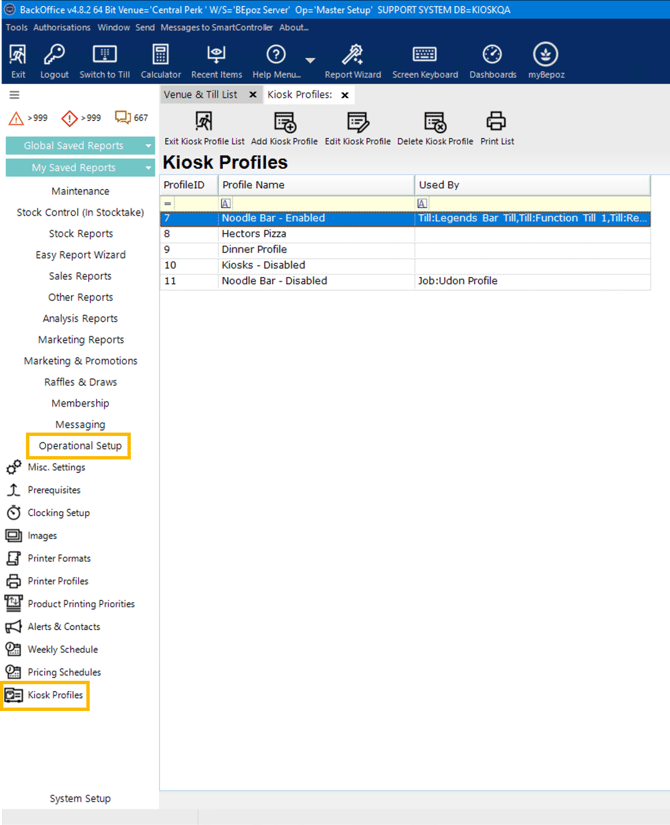
From here, you can:
Create new profiles
Edit existing profiles
Delete profiles
Each profile displays:
Profile ID
Profile Name
Workstations using the profile
Any scheduled jobs currently linked to the profile
Kiosk Profile Configuration
When editing or creating a profile, the setup screen is divided into functional sections. The following outlines each option and its purpose.
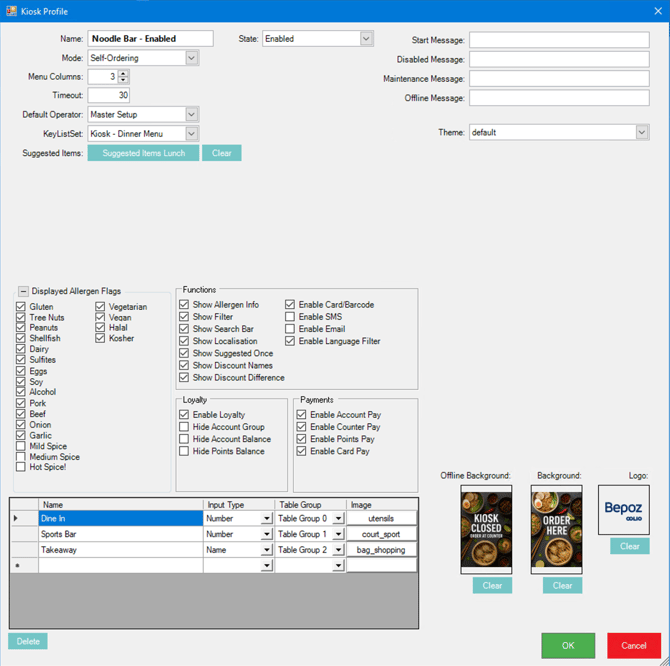
1. General Information
Name (profile name)
A unique identifier for the profile.
State
Determines the current operational status of kiosks using this profile:
Enabled — Kiosk is open and available for ordering
Inactive — Kiosk is closed
Maintenance — Kiosk is offline for an unspecified reason
Mode
The operational mode.
Currently: Self-Ordering (only), with additional modes planned for future releases.
Menu Columns
How many product columns are displayed on the kiosk menu UI.
Timeout (Seconds)
The number of seconds of inactivity before the kiosk prompts the customer to confirm they are still using the device. This helps prevent abandoned orders from remaining active.
Default Operator
The operator assigned to all kiosk transactions.
As of bepoz v4.8.2.0, a new global setting allows one operator to be logged in to multiple POS devices simultaneously, enabling a single operator to be shared across multiple kiosks. If you prefer individual operators per kiosk, create a unique profile for each kiosk.
Note: As of bepoz v4.8.2.0, a new feature allows one operator to be logged in to multiple POS devices simultaneously, enabling a single operator to be shared across multiple kiosks. Please contact bepoz Support if you wish to activate this feature.
If you prefer individual operators per kiosk, create a unique profile for each kiosk and assign separate operators.
2. Menu Configuration
Keylist Set
Select the menu that the kiosk will use.
Example use cases include:
Breakfast, lunch, or dinner profiles
Venue-specific menus
Automated menu scheduling via jobs
Further reading: > article coming <
Suggested Items (Upsell List)
Links to a dedicated KeyList that contains upsell products. These items appear during checkout to encourage add-ons before payment.
3. Messaging
Start Message
Displayed when the kiosk is idle. If your start message is already part of the image, such as "Order Here", leave this field blank.
Disabled / Maintenance / Offline Messages
All options can be text-only and will display over the Background image when triggered. If no Messages are set, the Offline Background image will be shown when these states are active.
Disabled Message — shown when the kiosk is closed.
Maintenance Message — shown when the kiosk is offline for maintenance or updates.
Offline Message — shown when the kiosk has no network or cannot to the system.
4. Themes
Kiosk Profiles include the following theme options:
Default (purple)
Red
Green
Blue
Yellow
Custom (see below)
Selecting the Custom Theme allows you create your own colour scheme with the following six options for colours:
Primary - Product names & prices, KeyList section headers
Secondary - Top & left-hand side margins
Background - Area behind Product images
Border - Product image borders and separator lines throughout
Button Light - as button background, Button Dark is used for text
Button Dark - as button background, Button Light is used for text
5. Branding
Background images should be created in the same resolution as the kiosk device.
Upload and configure:
Normal Background - displayed when the kiosk is ready and idle
Offline Background - displayed when the kiosk is disabled or under maintenance
Logo, displayed top-left of the ordering screen (400x400px is recommended)
6. Allergen Display
You can choose which allergen tags are visible on the kiosk.
Options include enabling or disabling allergen(s):
Labels
Filtering
Icons on product cards
7. General Functions
These options control key kiosk behaviours:
Display Allergen Info
Enable Allergen Filter
Enable Search Bar
Localisation, to select the displayed language
Suggested Items Once Only
Show Discount Name
Show Original + Discounted Price
Enable Card Barcode Scanning
Enable Email (Enable SMS - future release feature)
Language Filter (Profanity Filter), which prevents inappropriate customer inputs for names or table identifiers
8. Loyalty Settings
Enable or disable:
Loyalty enrolment
Show/Hide Account Group
Show/Hide Account Balance
Show/Hide Points Balance
9. Payment Methods
Configure which tender types the kiosk supports:
Account Pay
Counter Pay - orders will not print until payment has been made, Bistro Table button must be configured on the POS Till to access these orders.
Points Pay
Card Pay
10. Order Types
Order Types define how customers identify their order and how the order is handled inside SmartPOS.
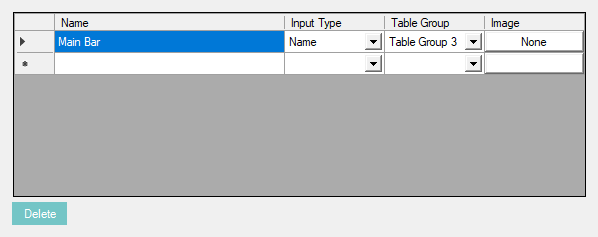
Each Order Type includes:
Name, customer-facing.
Input Type: Table Number (numeric only), Name (alphanumeric entry)
Table Group, where orders are routed in POS.
Image/Icon, uploaded file or a FontAwesome icon.
Example configuration:
| Order Type | Input | Table Group | Use Case |
|---|---|---|---|
| Dine-In | Table Number | DINEIN | Standard restaurant mode |
| Sports Bar | Number Entry | BAR | Quick service bar orders |
| Takeaway | Name Entry | TAKEOUT | Collection orders |
Note: Order Types can be removed using the Delete button.
Applying a Kiosk Profile
Once your profile is configured:
-
-
Navigate to Workstation Setup.
-
Select the kiosk workstation.
-
Assign the required Kiosk Profile from the dropdown.
-
All linked kiosks will inherit the configuration.
Internal Use Only - further reading:
Summary
Kiosk Profiles provide a scalable way to standardise kiosk behaviour across multiple devices. With support for centralised menu control, scheduled automation, theme management, payment configuration, and advanced user flows, this feature reduces setup time and helps deliver a consistent customer experience.
updated to: bepoz v4.9.0