
Overview
This article will guide you through the entire process of configuring a Backoffice workstation to function as a Bepoz Kiosk. We'll cover the steps to create and configure the workstation, enable SmartAPI, and set up printing and workstation flags. By the end, you'll have a fully operational kiosk workstation that integrates seamlessly with your POS environment.
1. Navigate to Venue, Stores, and Tills Section
First, open Backoffice and go to the Venue > Stores & Tills section. This is where you’ll create and manage your workstations.
2. Create a New Workstation for the Kiosk
-
In the Venue, Stores & Tills area, create a new workstation in the desired venue & store
-
Assign it a meaningful name that identifies it as a kiosk (e.g., Lobby Kiosk, Main Entrance Kiosk).
3. Set the Till Mode to Kiosk
Once the workstation is created, you’ll need to specify its mode:
-
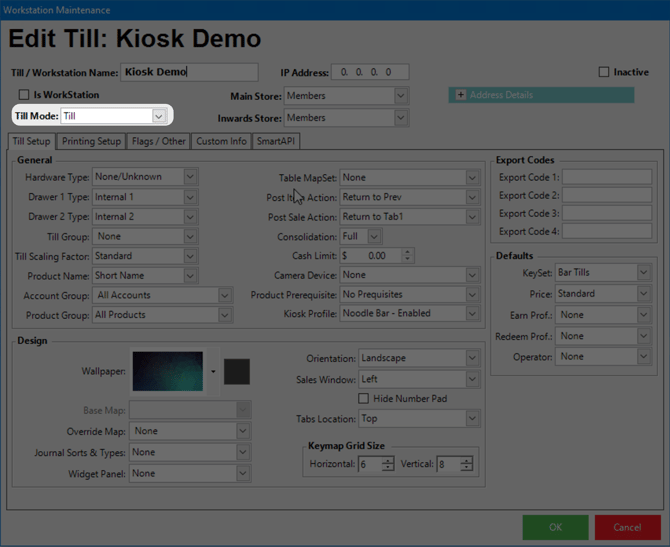
Set the Till Mode to Till.
4. Configure the SmartAPI Settings
This is the critical step for kiosk operation:
-
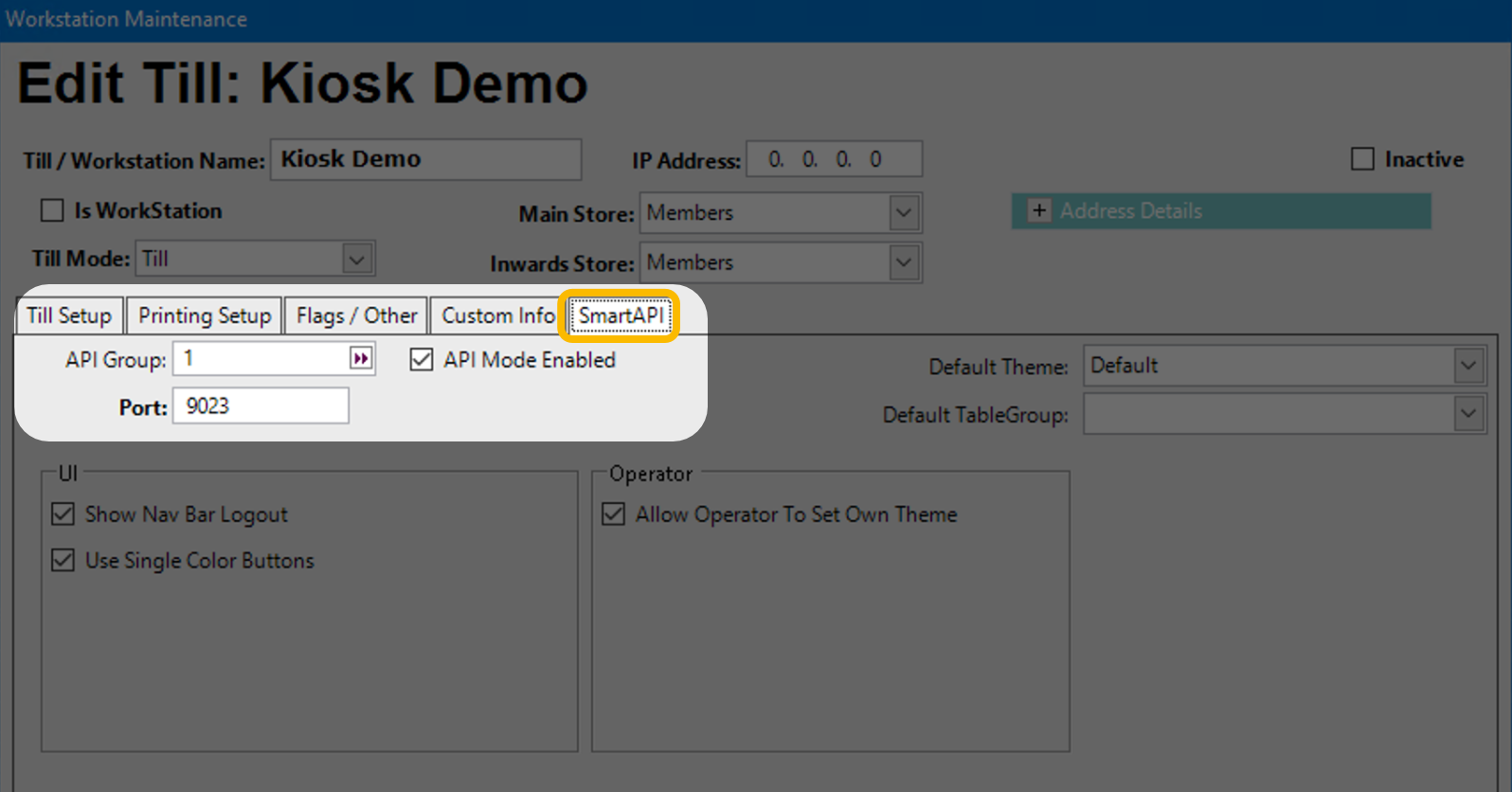
Go to the SmartAPI tab in the workstation settings.
-
Enable API Mode. This is mandatory for the kiosk to communicate with the system.
-
Make sure an API Group is configured. This is used within the API Host configuration.
-
Assign a unique API Port for the kiosk. Each kiosk must have its own distinct port to avoid conflicts.
Note: Ignore any settings related to SmartPOS Mobile (like themes or table groups). These are not relevant for kiosks.
5. Set the Kiosk Profile
In the Till Setup tab:
-
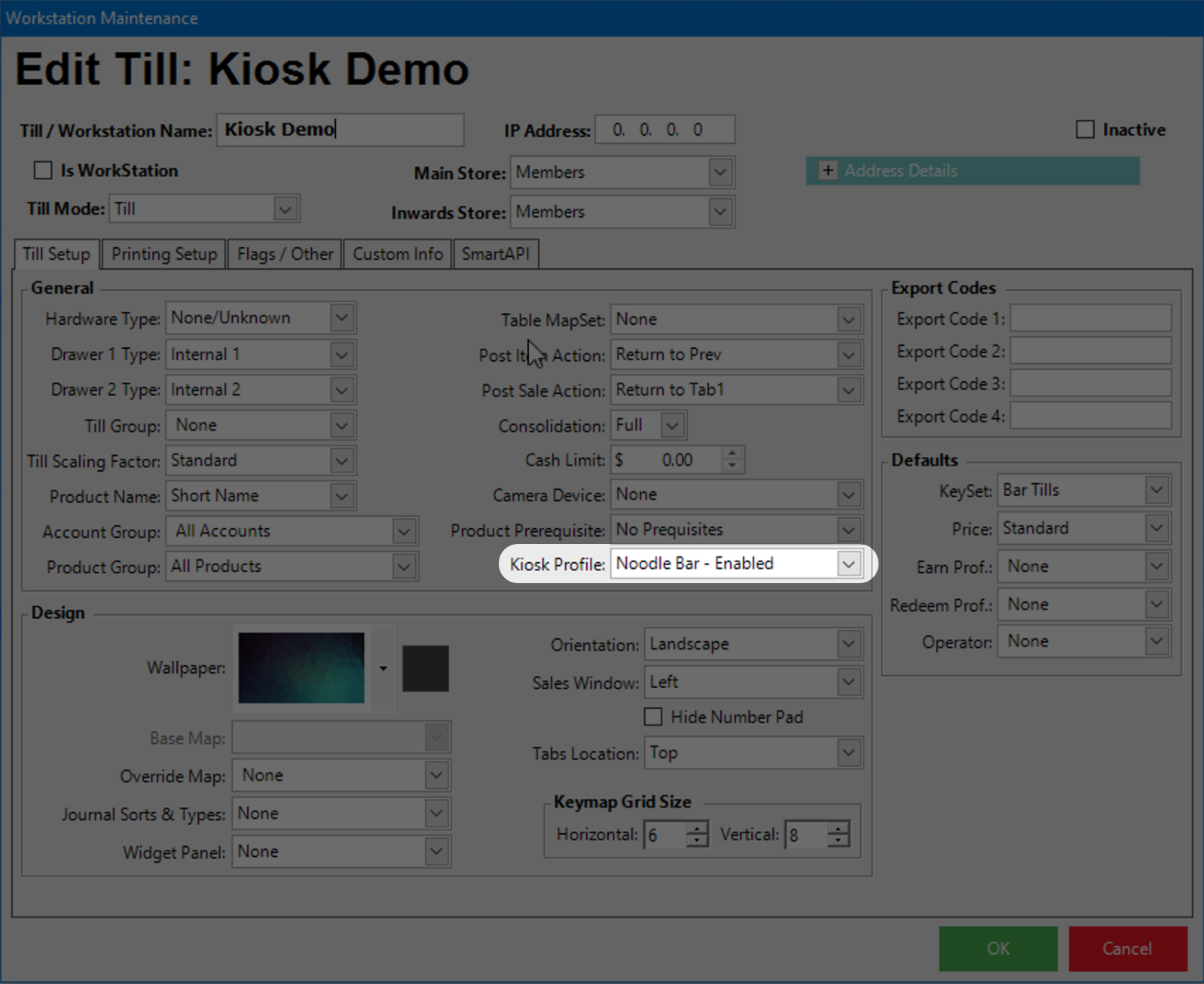
Under the General section, you’ll find a new dropdown labeled Kiosk Profile.
-
Select or configure a profile that this kiosk will use. This profile defines the kiosk’s unique settings and behavior.
6. Configuring Printing Setup
The printing configuration for a kiosk workstation mirrors the standard Point of Sale setup. Here’s what you need to do:
-
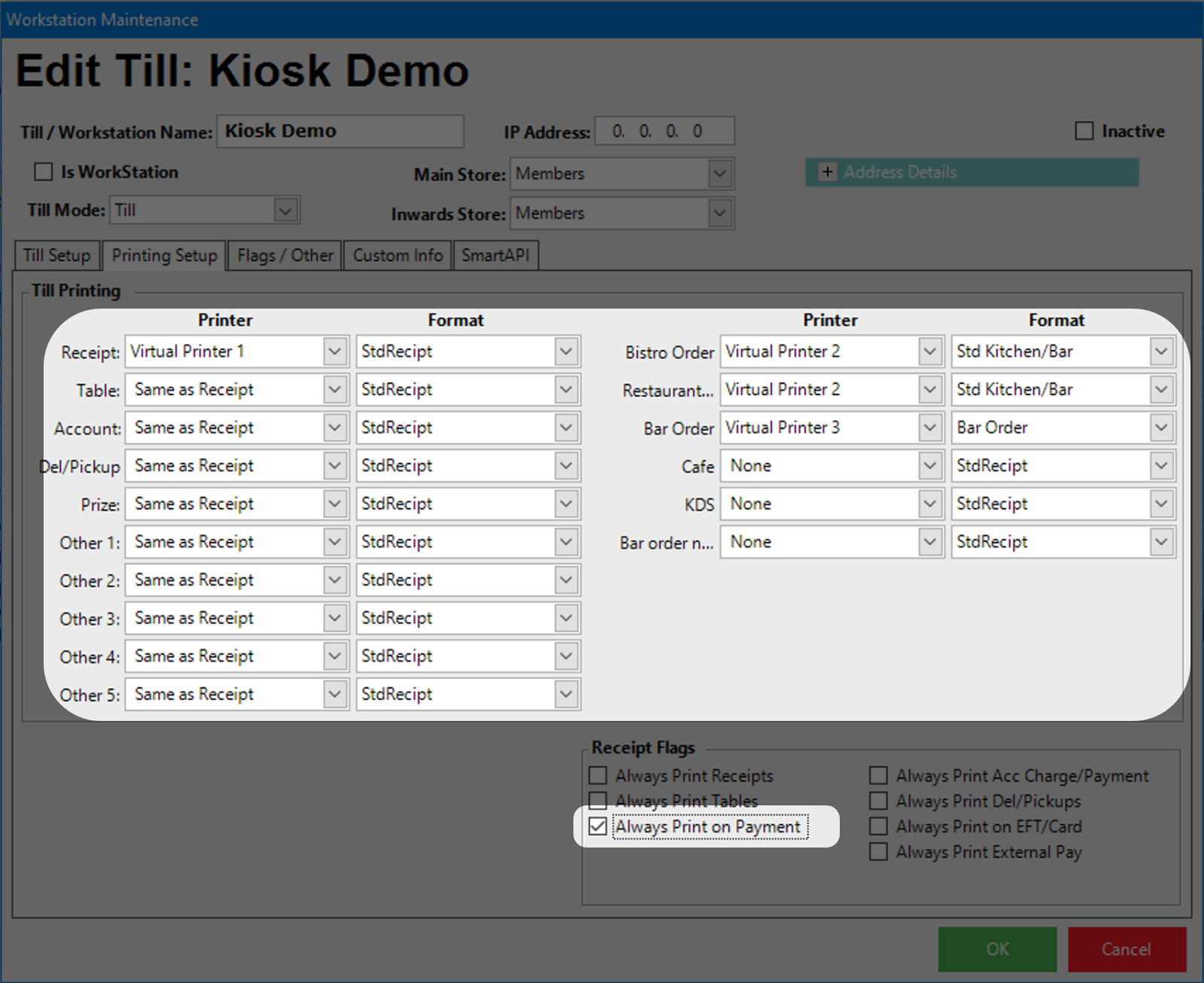
Select the Receipt Printer:
In the workstation settings, choose the printer that will handle customer receipts. -
Configure Remote Printers (Optional):
If your kiosk needs to send orders to kitchen or bar printers, set these up just like you would for a regular POS station. Assign the appropriate remote printers so that food or drink orders print in the correct remote printers. -
Set the Receipt Flag:
Make sure the receipt flag is configured to always print on payment. This guarantees that every transaction at the kiosk provides the customer with a receipt once they complete payment.
7. Setting Workstation Flags for Kiosk
There are a couple of important new flags you’ll want to enable for kiosk workflows:
-
“Don’t Progress Condiments” Flag:
This new flag is crucial for order flows that include condiments. When enabled, it ensures that condiment-related workflows do not automatically progress or finalise until the user selects ‘next’. -
Till Specific Flags:
Depending on how you want the kiosk to operate, you’ll set these flags just as you would for a standard POS. For example, setting the redeem points flag will allow customers to redeem points at the kiosk if your venue supports that feature.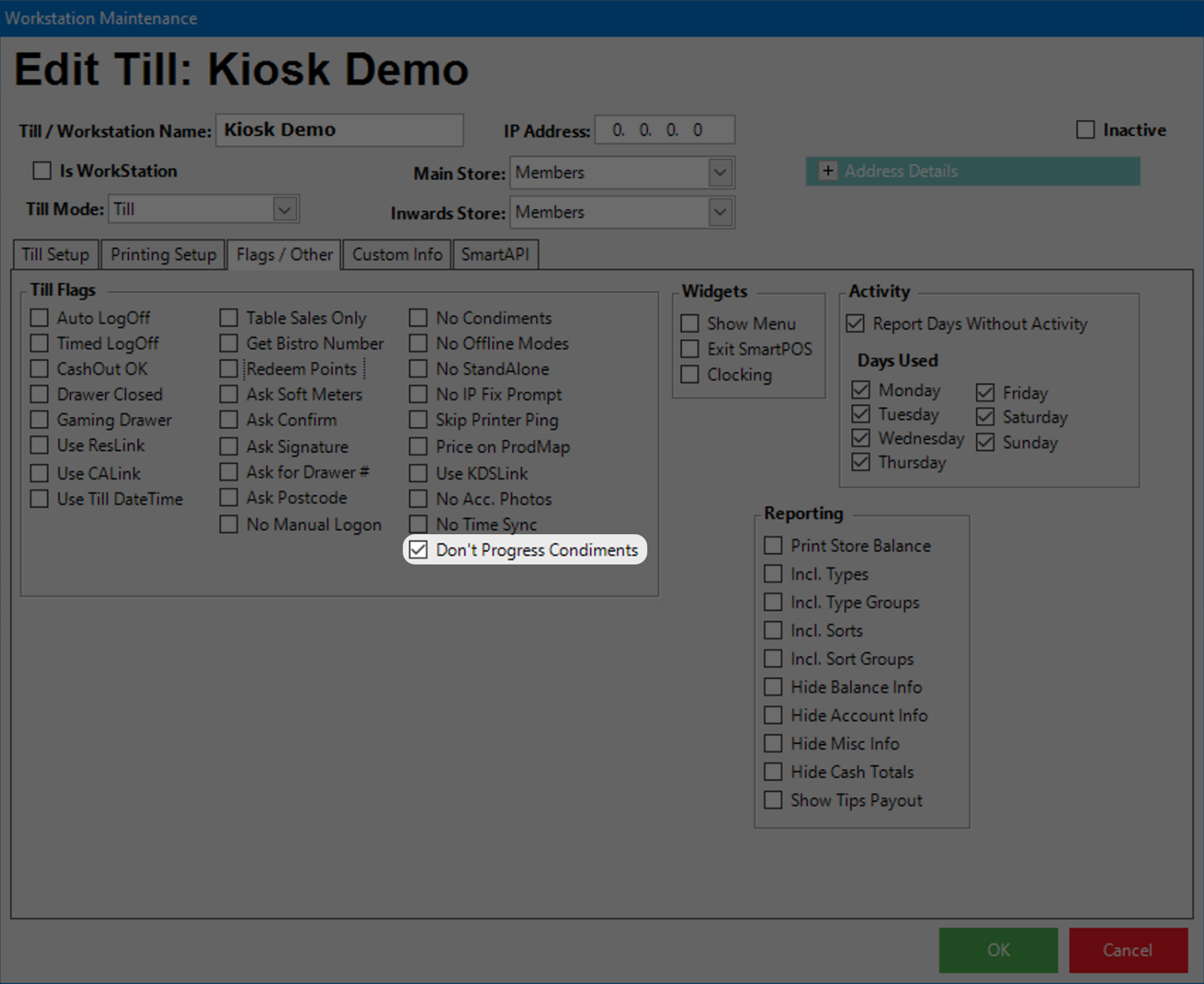
Summary of Additional Steps
In addition to the core setup, remember to:
-
Configure the receipt printer and any remote printers as you would for any POS.
-
Ensure the receipt flag is set to always print on payment to give customers a receipt.
-
Enable the “Don’t Progress Condiments” flag for orders with condiments.
-
Set any till specific flags as needed, just like a standard POS configuration.