
Overview
bepoz is capable of adding a Surcharge to transactions; this has become commonplace in hospitality applications for Weekends, Public Holidays, and a few other specific cases.
While there are a number of ways that Surcharges may be configured, this document covers the recommended Pricing Schedule setup (two methods):
- A: Surcharge via a Service Charge percent to all Products & Prices
- B: Surcharge via a fixed percent to a Price Number
📌 Note:
The Pricing Schedule is used over and above a Scheduled Job as the Pricing Schedule is saved in the Local POS Database and if the POS Till goes Offline or into Standalone Mode the Schedule will start and stop as normal.
Pricing Schedule automation does not currently support Venue Groups, Venue Sets, or Store Groups, so localised holidays must be configured individually for each Venue.
Both methods can support Member Pricing when configured correctly.
Prerequisites & Versions
- Pricing Schedules available from Version 4.6+
- BackOffice is running (on HO for Multi-Venue) and logged in with Administrator / Support Operator Privileges
- All POS Tills/Tablets/etc. must be turned on and connected to the SmartController to receive the Schedules
Procedure
Method A: Surcharge via Service Charge to all Products & Prices
📌 Note:
Setting a Service Charge by applying a fixed percent is an across-the-board method to temporarily adjust ALL Price Numbers, e.g. if you are using side-by-side Price Levels for non-Members/Members.
This method cannot be turned on/off from the POS Tills.
You may set a 'No Service Charge' Product Flag against any Product which you do not want to apply the Surcharge to, e.g. Membership Renewal Products. This can be done from the Product Tree or individually.
Set up the Pricing Schedules (On / Off); each Public Holiday Schedule requires two (2) schedule setups – one to switch ON, and one to switch OFF:
- Navigate to Operational Setup in the BackOffice Menu
- Open Pricing Schedules
- Select 'Add Scheduled Pricing' - it will change colour when you hover you mouse over it; clicking will open the setup window (set ups below)
- (optional) Tick/Untick 'Latest Records' - unticking will allow you to search for Schedules by date (shown in green box) to edit past Schedules, i.e. you can reuse them once the date has passed
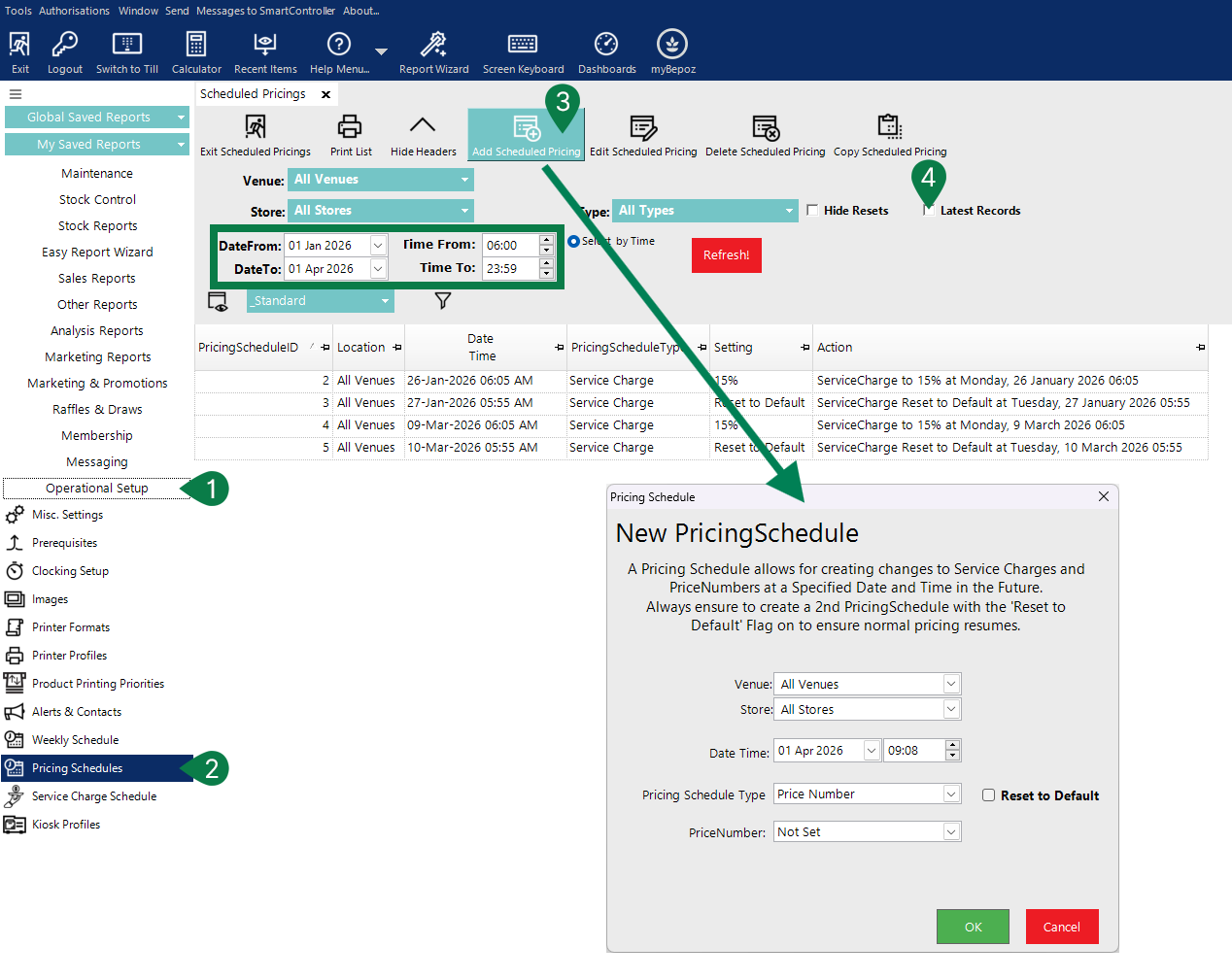
To turn ON - Add Scheduled Pricing from the Scheduled Pricing Header menu - a 'New PricingSchedule' dialogue box will appear:
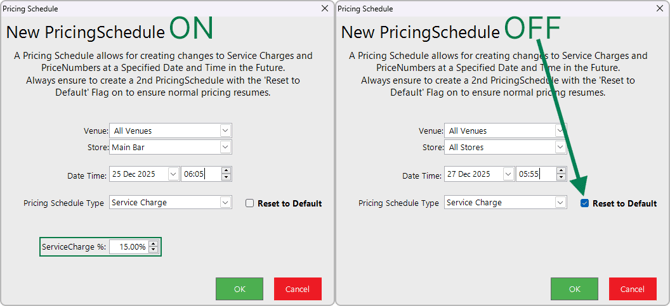
- Select the individual Venue to schedule, or leave on All Venues
- Select a Store to schedule, or leave on All Stores (individual Stores will require multiple Schedules created if not set to 'All Stores')
- Select the Date Time to initiate the surcharge(s), e.g. 25 Dec 2025 at 06:05
- Set the Pricing Schedule Type to Service Charge
- Set the ServiceCharge %, e.g. 15.00%
- Click OK.
A second 'PricingSchedule' is required to revert back to your standard pricing after the surcharge period has passed. You can create just one new Schedule to set all of your individual Venues/Stores back to normal.
To turn OFF - Add Scheduled Pricing from the Scheduled Pricing Header menu - a 'New PricingSchedule' dialogue box will appear:
- Set Venue to All Venues
- Set Store to All Stores
- Select the Date Time to cancel the surcharge(s), e.g. 27 Dec 2025 at 05:55
- Set the Pricing Schedule Type to Service Charge
- Turn on the Reset to Default flag
- Click OK.
Method B: Surcharge via a Fixed Percent to a Price Level
📌 Note:
Setting a Price Level Surcharge applies only to a select Price Level, which must already exist in your BackOffice setup with the appropriate percent configured.
This method also allows for manually turning on/off from the POS Tills, provided a Scheduled Job and POS Function Keys have been created as well.
Note: This method should be used when NOT ALL the Products require the Surcharge price or different Surcharge Prices. Ie. No Surcharge on Food or Food at 10% and Beverage at 15%
Member Prices will work properly using this method if the Member 'Account Group' is set to:
- Price Number = 'Use Till PriceNumber'
- Pricing Type = 'Discount'
- Pricing Percent Discount = (your Member disc.%)
- Force Account Price = flag 'On' ☑️
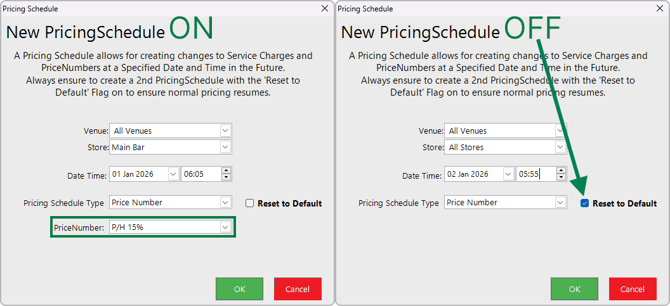
To turn ON - Add Scheduled Pricing from the Scheduled Pricing Header menu - a 'New PricingSchedule' dialogue box will appear:
- Select the individual Venue to schedule, or leave on All Venues
- Select a Store to schedule, or leave on All Stores (individual Stores will require multiple Schedules created if not set to 'All Stores')
- Select the Date Time to initiate the surcharge(s), e.g. 1 Jan 2026 at 06:05
- Set the Pricing Schedule Type to Price Number
- Choose your PriceNumber, e.g. P/H 15%
- Click OK.
As with 'Method A', a second 'PricingSchedule' is required to revert back to your standard pricing after the surcharge period has passed. You can create just one new Schedule to set all of your individual Venues/Stores back to normal.
To turn OFF - Add Scheduled Pricing from the Scheduled Pricing Header menu - a 'New PricingSchedule' dialogue box will appear:
- Set Venue to All Venues
- Set Store to All Stores
- Select the Date Time to cancel the surcharge(s), e.g. 2 Jan 2026 at 05:55
- Set the Pricing Schedule Type to Price Number
- Turn on the Reset to Default flag
- Click OK.
Flags/Field |
Description |
| Venue |
|
| Store |
|
| Date Time |
|
| Reset to Default |
|
| Pricing Schedule Type |
|
| Service Charge % |
|
| Price Number |
|
❗Important:
For both methods outlined above, ALL Tills/Tablets/etc. must be turned on and connected to the SmartController to receive the Schedules. It is recommended to set up your Pricing Schedules well in advance of the day(s) required.
Method A & B: Update POS Tills/Tablets
The Pricing Schedules must be sent to all Tills, these are stored locally within each device to ensure they are started/stopped correctly should the Tills lose connection to the network, SmartController, or go into Standalone Mode.

Check your Pricing Schedules are correct, they should look similar to the examples above depending on your Venue requirements.
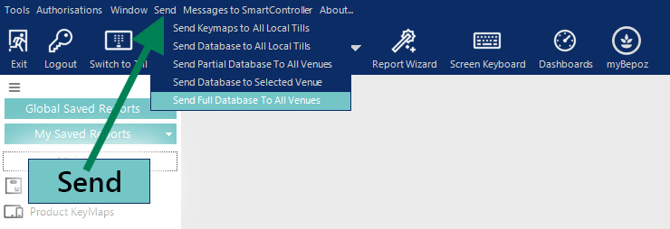
For a single Venue:
- From the BackOffice Header menu, click 'Send' then select Send Database to All Local Tills
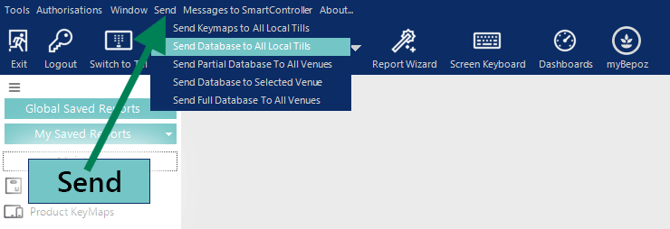
For a Multi-Venue:
- From the 'Head Office' (HO) BackOffice Header menu, click 'Send' then select Send Full Database to All Venues
Troubleshooting
When using Method B: Surcharge via a fixed percent to a Price Level:
- Check that no individual POS Tills/Tablets have a different 'Default' Price Level set.
- Check that no KeyMap Sets have a Price Level set against a specific KeyMap.
- Check that there are no Accounts/Account Groups using a dedicated Price Level.
- Ensure there are no wayward Price Redirections.
Hierarchy of Schedule Settings
- KeySet Price Level
- Pricing Schedule
- Weekly Schedule
- Scheduled Job
updated to: bepoz v4.9.0.1