
Overview
From 1 October 2026, businesses in Australia can no longer add a fee to a customer's bill simply because that customer paid by card. The change comes from the Reserve Bank of Australia and is enforced through the rules of the card schemes themselves.
In bepoz, the amount added to a Transaction when a customer pays by card is called a Handling Fee. A Handling Fee can be configured in more than one place, so each location needs to be checked and set to 0.00 before the cutover date.
This article covers where each Handling Fee is held in bepoz and how to remove it.
What the Ban Covers
From 1 October 2026, no fee may be added for paying with:
- eftpos, on debit and prepaid cards
- Mastercard, on credit, debit and prepaid cards
- Visa, on credit, debit and prepaid cards
- American Express, on credit cards. Amex is not regulated by the Reserve Bank but has confirmed it will apply the same no-surcharge rule
Before You Start
Within bepoz, a Handling Fee can be set in two separate places. Both need checking:
- Against each Card Type, and against EFTPOS, in the Venue record
- On a MOTO Payment button, if your venue takes phone orders
If your site runs more than one Venue, every Venue needs to be done.
📌 Note: A surcharge added by the EFTPOS terminal is separate. That one is configured by your payment provider on the handset itself, not by bepoz, so clearing the Handling Fees below will not remove it. If your terminal surcharges, arrange that separately with your payment provider.
Venue Settings
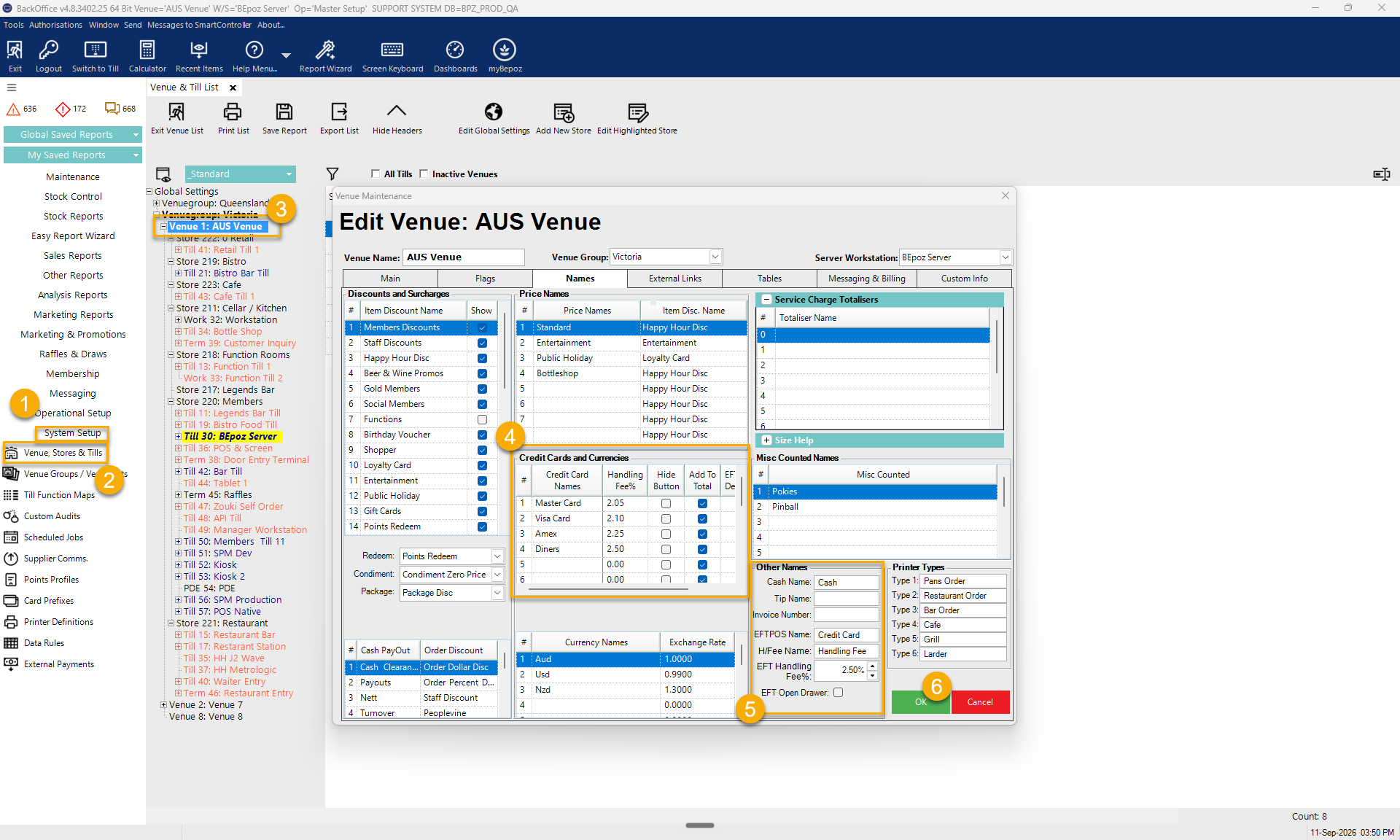
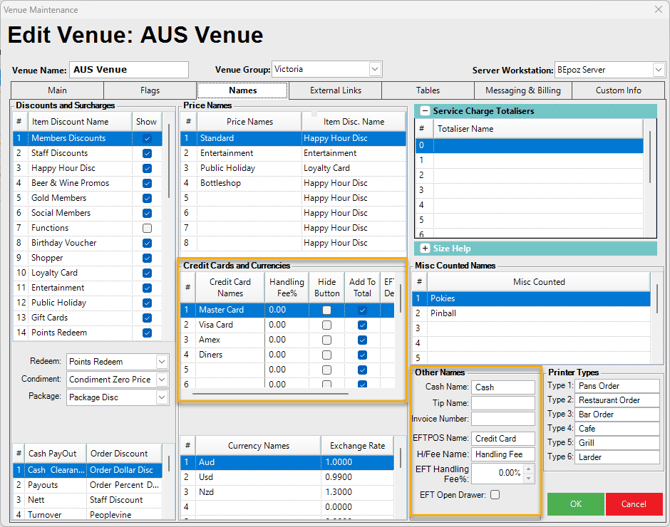
Navigate to Venue, Stores & Tills, select the Venue, and open the Venue Maintenance screen. Go to the Names tab.
Fig 1 - The Names tab of Venue Maintenance
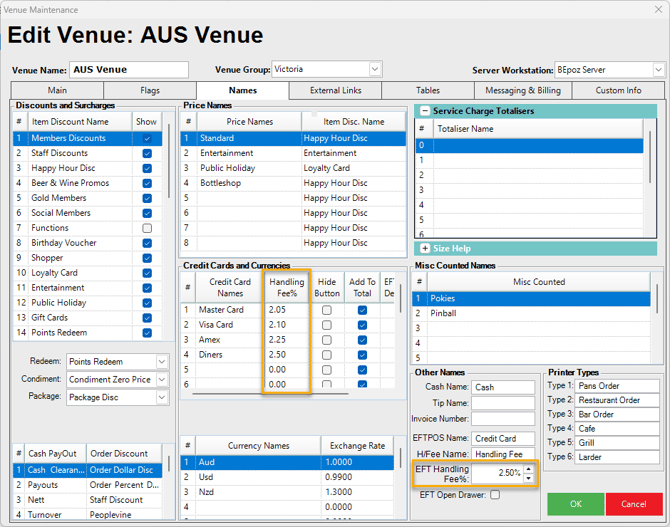
Image below shows the BackOffice context for Venue Maintenance
1. Clear the fee on each Card Type
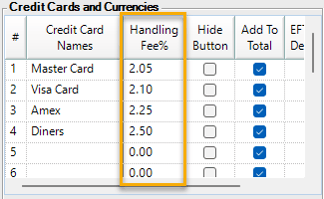
Find the Credit Cards and Currencies section. The Handling Fee% column holds the fee added when that Card Type is used to tender.
Fig 2 - Before: a Handling Fee% is set against each Card Type
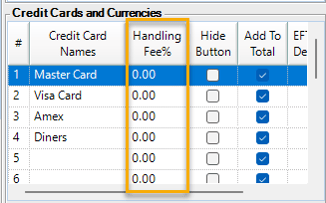
- Set Handling Fee% to 0.00 for every Card Type listed.
- Work down the full list. The grid scrolls, and a fee can be sitting on a row below the ones visible.
Fig 3 - After: every Handling Fee% reads 0.00
Leave the Hide Button and Add To Total columns as they are. Hiding a button removes it from the Operator's tender options but leaves the configured fee in place behind it, so it is not a substitute for clearing the value.
2. Clear the EFTPOS fee
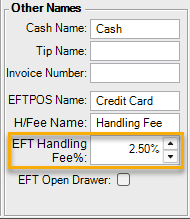
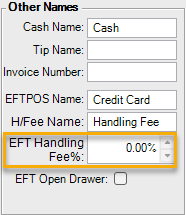
In the Other Names panel on the same tab, set EFT Handling Fee% to 0.00. This is the fee that applies when the EFTPOS button is used to tender rather than a named Card Type, so it is easily missed.
Fig 4 - Before: EFT Handling Fee% set to 2.50%
Fig 5 - After: EFT Handling Fee% set to 0.00%
Fig 6 - The Names tab with every Handling Fee cleared
Click OK to save, then repeat for each remaining Venue.
Global Settings
You do not need to change anything in Global Settings, but it is worth knowing what is there.
Under Global Settings > Flags, the Nett Total Makeup and Tax Calculation panel contains an Include Handling Fee setting and a Handling Fee Product. These control how a Handling Fee is reported and which product it posts against. They do not control whether a fee is charged.
Fig 7 - Include Handling Fee in Global Settings
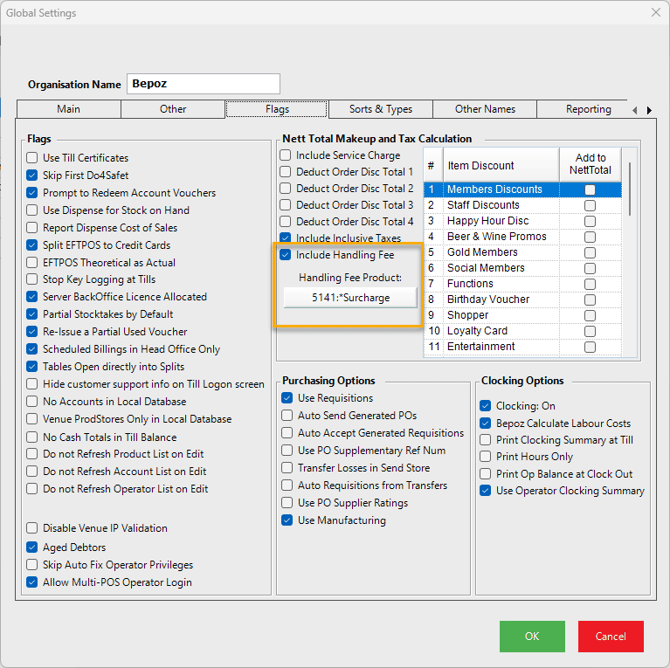
Once every Handling Fee% is set to 0.00, there is no fee left for these settings to act on, so leave them as they are. Changing them affects how past Transactions report.
MOTO Payment Buttons
If your venue takes Mail Order or Telephone Order payments, a surcharge can also be set on the MOTO Payment button itself. This is separate from the Venue record and needs clearing as well.
1. Find the Function Map your Tills use
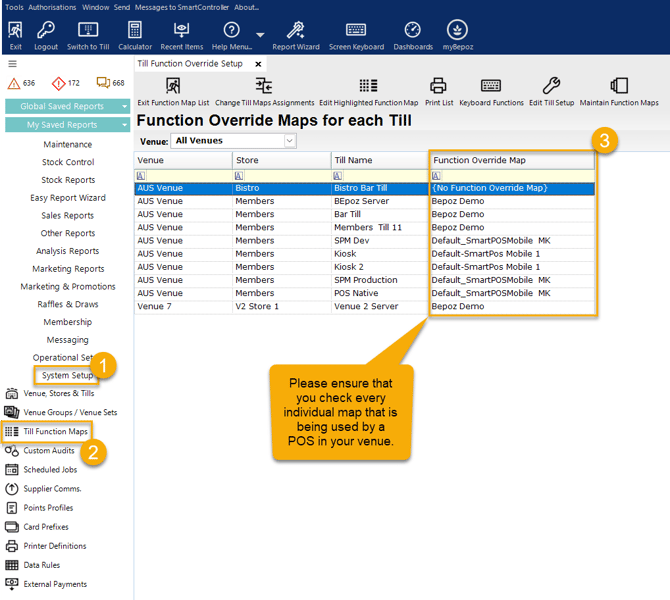
Navigate to Till Function Maps. The Function Override Maps list shows which Function Map each Till uses, so you can see which maps need checking.
Fig 8 - Finding the Function Map a Till uses
2. Clear the surcharge on the button
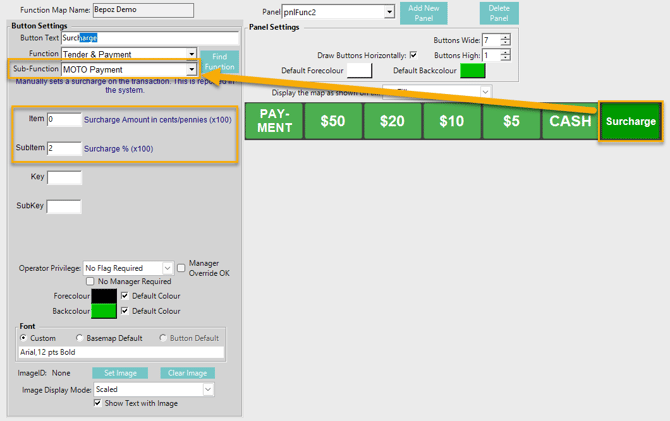
Open the Function Map and select the MOTO button. It will have Function set to Tender & Payment and Sub-Function set to MOTO Payment.
Fig 9 - Before: a surcharge percentage is set in SubItem
- Set Item, the surcharge amount, to 0.
- Set SubItem, the surcharge percentage, to 0.
- Save the Function Map.
- Repeat for every Function Map that has a MOTO Payment button.
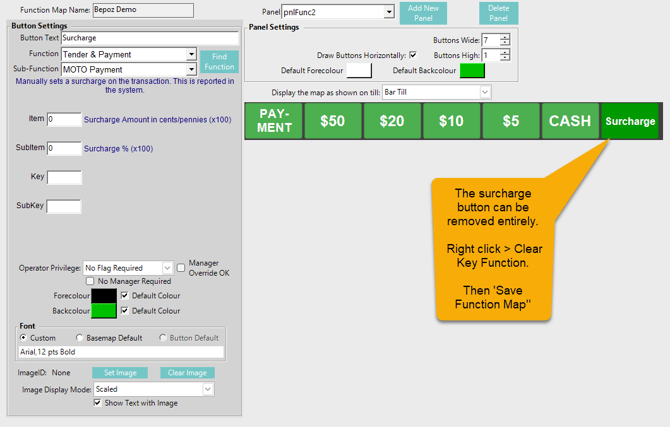
Fig 10 - After: Item and SubItem both read 0
The button itself can stay on the panel. With both values at 0 it tenders a MOTO Payment without adding a surcharge, or can be removed entirely.
SmartPOS Workflow
1. What the Till used to do
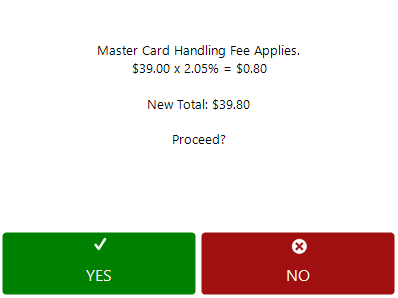
While a Handling Fee% was set against a Card Type, selecting that Card Type prompted the Operator to confirm the fee before the Transaction could be tendered.
Fig 11 - Before: the Till asks the Operator to accept a Master Card Handling Fee
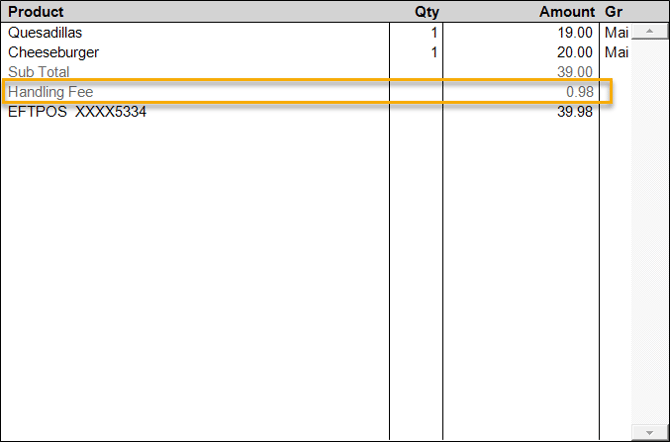
Where the EFTPOS button was used, the EFT Handling Fee% was added as its own line in the Transaction window and the tender was taken for the higher amount.
Fig 12 - Before: a Handling Fee line added to the Sub Total
2. What the Till does now
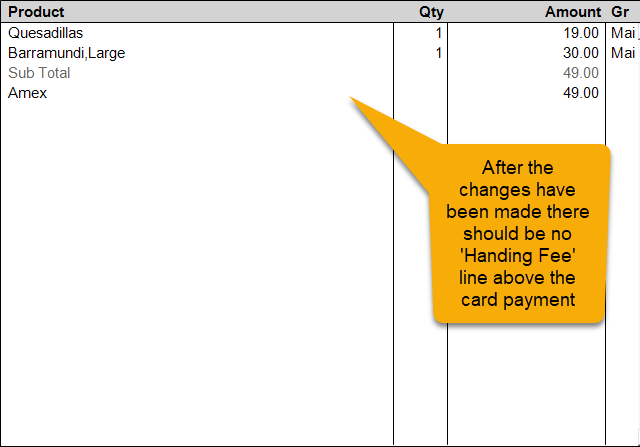
Once the Handling Fees have been set to 0.00, no prompt appears and no Handling Fee line is added. The Transaction tenders for the Sub Total.
Fig 13 - After: the Transaction tenders with no Handling Fee
3. On the Receipt
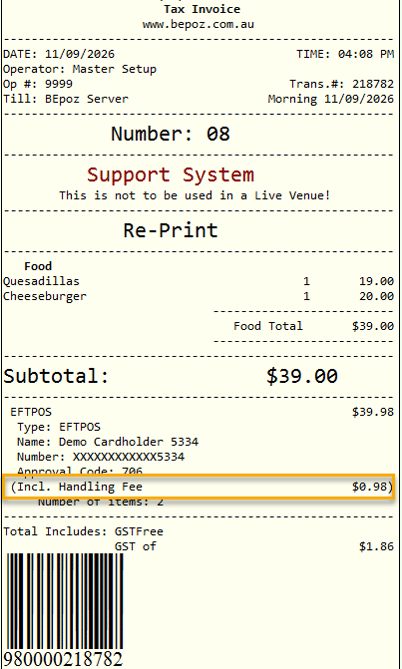
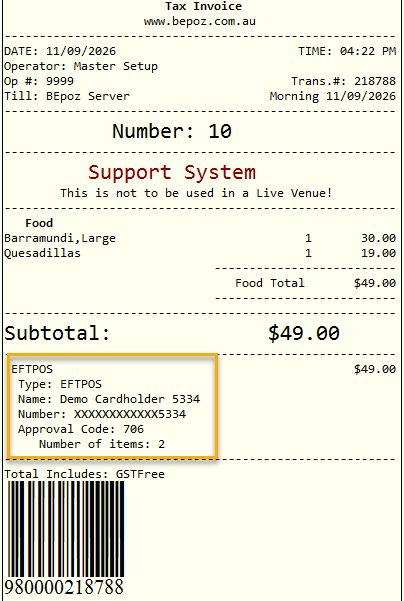
The Handling Fee does not print as its own line on the Receipt. It appears inside the EFTPOS tender block, as an (Incl. Handling Fee) amount beneath the card details. That is the line to look for when checking a Receipt.
Fig 14 - Before: the EFTPOS tender prints Incl. Handling Fee $0.98 and settles for $39.98 on a $39.00 Subtotal
Fig 15 - After: the EFTPOS tender settles for the Subtotal with no Handling Fee line
To confirm the change at your own venue:
- Restart Smart Controller for the changes to take effect.
- Restart each SmartPOS for the changes to take effect.
- Start a Transaction and tender it using a Credit Card button.
- Confirm no prompt appears advising that a Handling Fee will apply.
- Confirm no Handling Fee is added to the Transaction window.
- Confirm the printed Receipt shows no (Incl. Handling Fee) line, and the tendered amount matches the Subtotal.
Repeat using the EFTPOS button, and test each Card Type button your venue actually uses. If your venue takes phone orders, test the MOTO Payment button as well.
Transaction Journal
The Transaction Journal confirms what was actually recorded against each Transaction.
Run the Transaction Journal for a period after the fees were cleared and check that card Transactions carry no Handling Fee amount. This is the quickest way to prove the change took effect across every Till rather than just the one that was tested.
Common Scenario
A common setup before the ban was Visa and Mastercard on one Handling Fee%, AMEX on a higher one, Diners on a higher one again, and normal EFTPOS Debit Cards with no Handling Fee at all.
To bring that setup in line:
- Set Handling Fee% to 0.00 for Master Card, Visa Card, Amex and Diners.
- Set EFT Handling Fee% to 0.00 in the Other Names panel.
- Leave the Card Type buttons visible, so Operators can keep tendering to the correct Card Type.
- Clear the MOTO Payment button, if your venue uses one.
After this, every button tenders as normal and none of them adds a fee to the Transaction.
Summary
Key Takeaways:
- From 1 October 2026, no fee can be added because a customer paid by eftpos, Mastercard, Visa or Amex credit
- In bepoz, clear Handling Fee% on every Card Type and EFT Handling Fee% in the Venue record
- If your venue takes phone orders, clear Item and SubItem on the MOTO Payment button too or remove the button entirely
- A surcharge added by the EFTPOS terminal comes from your payment provider, not from bepoz, and is arranged separately
- Public Holiday, Weekend and service charges are not affected by the ban
updated to: bepoz v4.9.0.6