
Overview
This article explains how SmartPOS operators use Dine-In and Takeaway order types during a sale.
The Dine-In / Takeaway feature is new in bepoz v4.9.0.4.
When enabled for your venue, every sale is classified as either Dine-In or Takeaway. The selected order type can affect:
- The price level applied to the sale
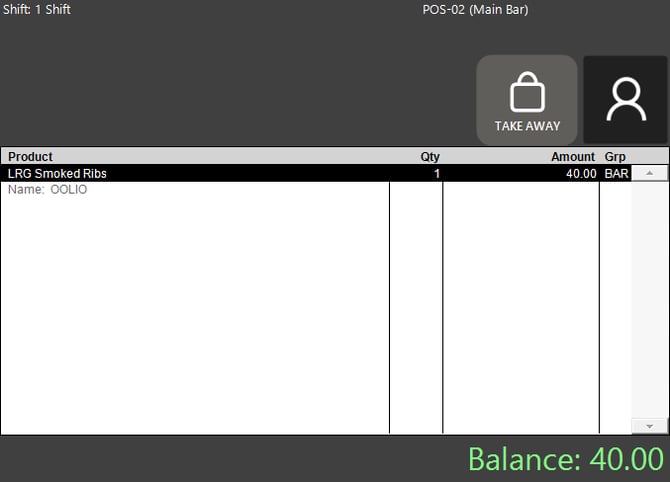
- How the order is shown on kitchen dockets
- How the sale is recorded for reporting
This guide covers what operators see on screen, how to choose the correct order type, and what happens if the order type needs to be changed during the sale.
Audience
This article is intended for:
- SmartPOS operators
- Venue staff taking customer orders
- Supervisors and managers supporting front-of-house teams
Before You Start
The Dine-In / Takeaway option is only visible if it has been enabled and configured by your venue administrator.
If you do not see Dine-In / Takeaway options on your till, speak to your venue manager or BackOffice administrator.
How Dine-In / Takeaway Works in SmartPOS
When the feature is enabled, every sale is assigned one order type:
- Dine-In
- Takeaway
Your workstation will be configured in one of two ways.
| Mode | Behaviour | Best Used When |
|---|---|---|
| Prompt at Start of Sale | SmartPOS asks you to choose the order type before the sale begins. | The same till regularly handles both dine-in and takeaway orders. |
| Persistent Toggle | A Dine-In / Takeaway button remains visible on the sale screen. | The workstation is usually dedicated to one order type, but operators may still need to change it. |
📌 Note: In both modes, the current order type remains visible on the sale screen so you can confirm whether the sale is set to Dine-In or Takeaway.
Starting a Sale in Prompt Mode
If your workstation is configured for Prompt at Start of Sale, SmartPOS asks you to choose the order type before the sale begins.
- Begin a new sale as normal, you must select a Product.
- Select the correct order type when SmartPOS displays the order type selection screen:
- Dine-In
- Take Away
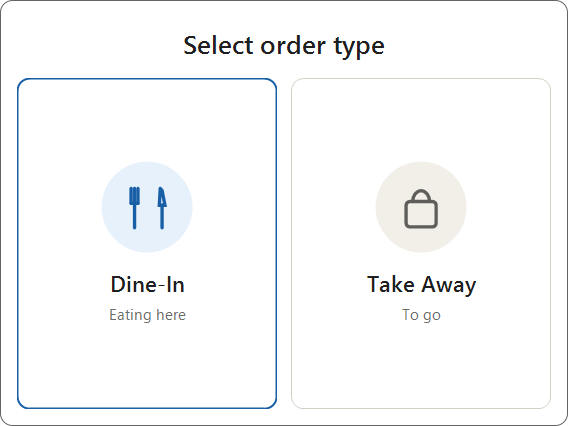
- Confirm the sale screen opens with the selected order type applied.
- If the Comment Prompt option is turned on, enter the required details.
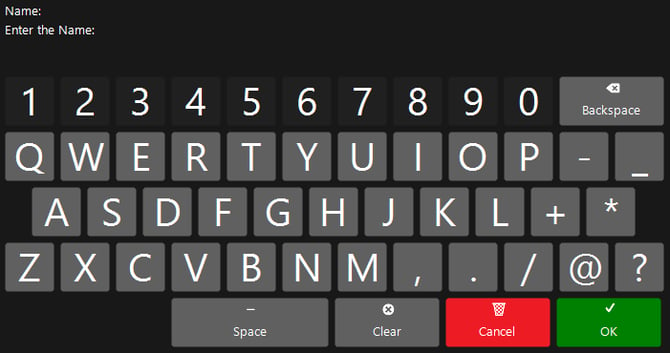
- Continue to add items to the sale as normal.
Once the order type is selected:
- The sale is marked as Dine-In or Takeaway
- The correct price level is applied from the first item added
- The selected order type remains visible on the sale screen
💡 Tip: Your venue may use custom labels such as Eat In or To Go instead of Dine-In / Takeaway. The options still behave the same way.
Starting a Sale in Persistent Toggle Mode
If your workstation uses Persistent Toggle, the sale screen always shows the current order type.
- Begin a new sale as normal.
- Check the Dine-In / Takeaway button on the sale screen, SmartPOS will always revert back to the Default Order Type set in BackOffice.
- Confirm the displayed order type is correct for the sale.
- Add items if the order type is correct.
- Tap the button to switch to the other order type before continuing if the order type is not correct.
Once the correct order type is shown:
- Items added to the sale use the relevant Dine-In or Takeaway pricing
- The current order type remains visible throughout the sale
💡 Tip: Always check the order type before adding items, especially on shared terminals where the previous sale may have used a different order type.
Changing the Order Type During a Sale
You can change the order type during a sale if the wrong option was selected. The result depends on whether the order has already been sent to the kitchen.
1. Change the Order Type Before Sending to Kitchen
If no kitchen docket has been sent yet, the operator can change the order type directly.
- Tap the Dine-In / Takeaway button on the sale screen.
- Review the confirmation message.
- Confirm that you want to switch the sale to the other order type.
Select:
- Yes to continue and reprice the sale
- No to cancel and keep the current order type
- Confirm SmartPOS updates the sale immediately.
When the order type is changed before the kitchen send:
- The sale switches to the new order type
- All items on the sale are repriced automatically
- The sale continues using the new order type from that point onward
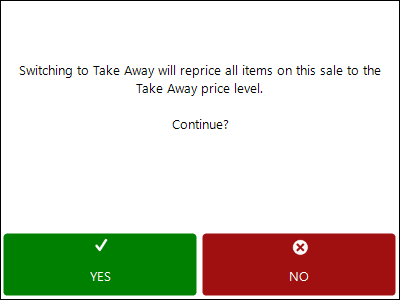
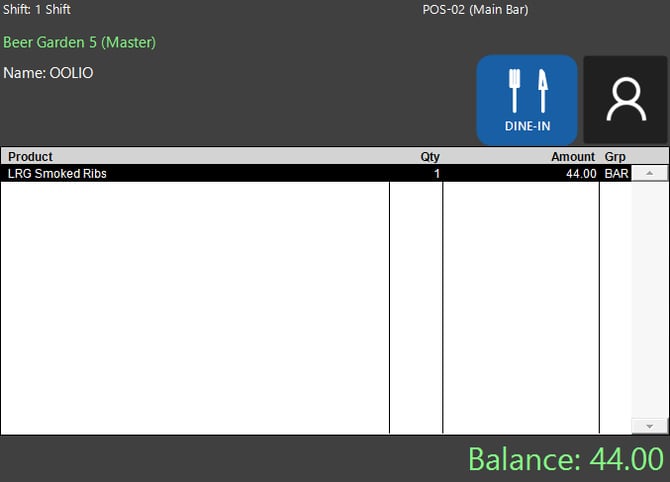
‼️ Caution: Changing the order type before kitchen send affects the pricing of the entire sale, not just the items added after the change.
2. Change the Order Type After Sending to Kitchen
Once a kitchen docket has already been sent, the order type is treated as locked. This prevents operators from silently repricing or changing a sale that the kitchen is already preparing.
- Tap the Dine-In / Takeaway button on the sale screen.
- Wait for SmartPOS to prompt for a manager override.
- Ask a manager or authorised supervisor to approve the change using their PIN or card authorisation.
- Confirm the order type is updated once approval is complete.
When the order type is changed after the kitchen has already received the order:
- The sale switches to the new order type
- The sale pricing is updated based on the new order type
- SmartPOS does not send an Order Type change docket
‼️ Important:
-
If the order type is changed after the kitchen has already received the order, kitchen staff will not receive a reprint or updated docket. Always communicate the change clearly to avoid preparation mistakes.
- Only transactions which have not yet been finalised may have the Order Type changed. This is not possible for already paid items.
What Appears on Kitchen Dockets
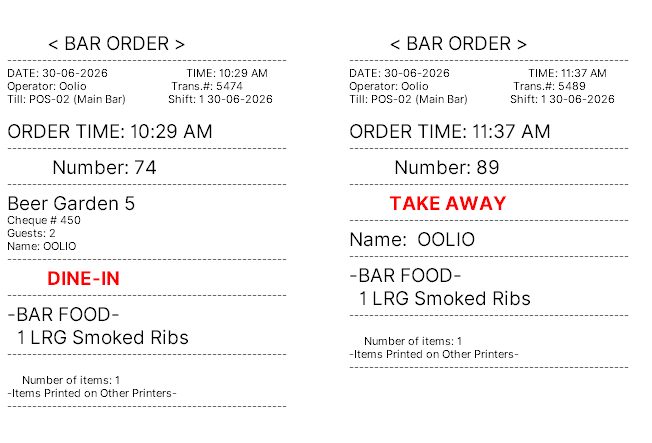
When a sale has a Dine-In or Takeaway order type, the kitchen docket includes the order type near the top of the docket.
This is displayed as entered in the BackOffice setup, for this example:
- DINE-IN
- TAKE AWAY
On supported kitchen printers, this line may print in red so it can be identified quickly by kitchen staff.
This helps kitchen staff understand the fulfilment context of the order before reviewing the item list, especially in venues that prepare dine-in and takeaway orders differently.
Good Operator Practice
To avoid pricing or kitchen errors, operators should follow these checks during service.
Before adding items:
- Confirm the sale is set to the correct order type
- Pay extra attention when using shared tills or persistent toggle mode
Before sending to kitchen:
- Double-check the order type if the customer changes from dine-in to takeaway, or vice versa
- Make the correction before kitchen send where possible to avoid the need for manager override
After kitchen send:
- Only change the order type if the sale genuinely needs to be corrected
- Notify the kitchen team immediately if the order has already been sent
Common Scenarios
Scenario 1 — Front Counter Sale in Prompt Mode
A customer orders at the counter and says they are dining in.
- Start a new sale.
- Select Dine-In when prompted.
- Add items to the sale.
- Finalise the order as normal.
The sale is priced and recorded as Dine-In.
Scenario 2 — Takeaway Sale on a Persistent Toggle Terminal
A takeaway terminal is already set to Takeaway.
- Start a new sale.
- Check that the order type button shows Takeaway.
- Add the customer’s items.
- Complete the sale.
No change is needed because the terminal was already on the correct order type.
Scenario 3 — Customer Changes from Dine-In to Takeaway Before Kitchen Send
The operator starts a sale as Dine-In, but the customer then decides to take the order away.
- Tap the order type button.
- Confirm the switch to Takeaway.
- Confirm SmartPOS reprices the sale automatically.
- Continue the sale with the new order type.
Scenario 4 — Order Type Change After Kitchen Send
Saved Tables only.
The order has already been sent to the kitchen as Dine-In, but the customer asks to take it away instead.
- Tap the order type button.
- Request a manager override.
- Receive approval from an authorised manager.
- Update the order type.
- Notify the kitchen that the Order Type has chaged.
Troubleshooting and FAQ
I Cannot See Dine-In / Takeaway on My Till
The feature may not be enabled for your venue, or your workstation may not be configured to use it.
Speak to your venue manager, administrator, or support team.
I Changed the Order Type and the Prices Changed
This is expected behaviour.
Dine-In and Takeaway can use different price levels. When you switch the order type, SmartPOS reprices the sale using the price level linked to the new order type.
Why Do I Need a Manager Override After the Order Has Been Sent to the Kitchen?
Once a kitchen docket has been sent, the order type is locked to prevent unauthorised changes to pricing and kitchen workflow.
A manager override ensures any post-send change is intentional and approved.
Does Changing the Order Type Affect the Whole Sale or Only New Items?
Changing the order type affects the entire sale.
When the order type is changed, SmartPOS reprices all items on the sale according to the selected order type.
The Order Type Names on My Screen Are Different from Dine-In / Takeaway
Your venue may be using custom labels such as Eat In and To Go.
These are alternate display names. The feature works the same way.
The Comment Prompt is Not Showing Up When I Switch Order Types
- Ensure this feature has been enabled in BackOffice.
- Comment Prompt ONLY works with the Order Type: Prompt at Start of Sale.
Summary
The Dine-In / Takeaway feature helps venues apply the correct pricing, kitchen docket information, and reporting based on whether a customer is dining in or taking the order away.
Key points for operators:
- Your workstation will either prompt for the Order Type at the start of the sale or show a persistent toggle
- The selected Order Type remains visible on the sale screen
- Changing the Order Type reprices the entire sale
- If the order has already been sent to the kitchen, a manager override is required to change it
- The original Order Type is printed clearly on kitchen dockets
-
Order Type changes are not printed on already sent dockets
updated to: bepoz v4.9.0.4