
Overview
The Header section of the Product Edit window stays visible as you move between its four tabs as show on the second image below:
'Product Settings' 'Store/Price Settings' 'Preparation Times' 'Custom Info'
This article explains the fields and controls available in the Product Edit Header area, concentrating solely on what remains on screen while you work within the tabs.
Prerequisites
-
Operator Privilege to Use BackOffice
-
Operator Privileges to View and Edit Products
Opening a Product Edit Window
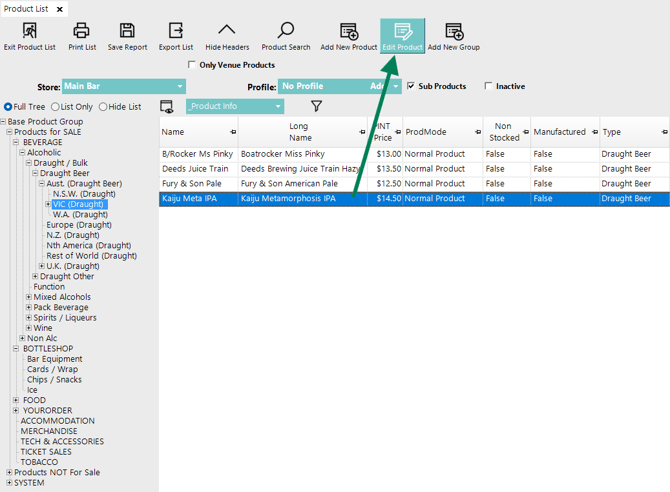
To open a Product Edit window, either double-click on the Product you wish to edit or click the 'Edit Product' button on the Product List Screen after selecting a specific Product:
Understanding the Product Edit Header
Quick-links
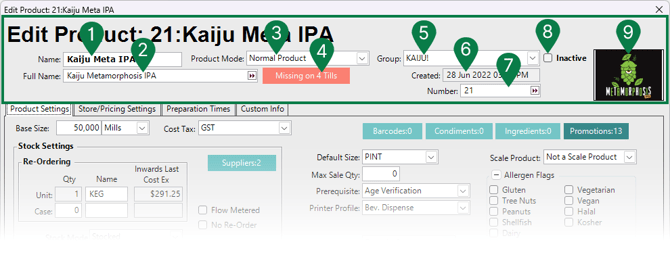
1. Name
The Name field is the primary Product name used throughout bepoz, particularly in operational and staff-facing areas.
In many configuration settings within bepoz, you may be given the option to use either Name or Full Name, depending on the context. The Name is typically used where clarity and brevity are important, such as:
POS keys
Kitchen or bar preparation dockets
Order screens and staff workflows
Because this field is often displayed in space-constrained areas, it is recommended to keep the Name short and easily recognisable.
Example: Scotch 350g
If the Full Name field (see below) is left blank, the value entered in Name will automatically be copied into Full Name.
2. Full Name
The Full Name field is designed for more descriptive Product naming, particularly where detailed information is useful or required.
This field is commonly used for:
Customer Tax Invoices
Reporting and exports
Stock Take and audit processes
In many areas of bepoz, configuration settings allow you to choose whether Name or Full Name is displayed. This allows a Product to present differently to staff versus customers, depending on the operational requirement.
The Full Name is well suited to longer, customer-facing descriptions that may include weight, size, cut, brand, or other clarifying details.
Example: 350g O'Connor Grass-fed Scotch Fillet
Using Name and Full Name fields appropriately allows kitchen and bar staff to see concise Product names, while stakeholders and customers receive clearer and more detailed descriptions on invoices and reports.
3. Product Mode
Defines how the Product behaves when sold at the POS Tills (for example, whether it is sold as a standard item, weighed item, modifier-driven product, etc.).
Product Mode has a direct impact on POS behaviour, reporting, and in some cases stock handling. Changing the Product Mode on an existing Product that already has sales history is not recommended, as this may cause unexpected behaviour at the POS or inconsistencies in reporting.
A detailed explanation of each available Product Mode can be found via the following links:
4. Missing on Tills Indicator
This indicator provides a quick visual reference showing whether the Product is currently available on all POS Tills.
Not all Products are expected to appear on all Tills or KeyMaps. Common reasons a Product may be marked as “Missing on Tills” include:
the Product has not been added to one or more KeyMaps
the Product is restricted to specific Venues or Tills
the Product is intentionally hidden from certain POS terminals
Clicking the indicator opens a detailed breakdown showing exactly which Tills the Product is unavailable on, allowing this to be reviewed and adjusted if required.
5. Group
Displays where the Product sits within the Product Tree structure.
The Group field shows the Product’s current location in the Product Tree and allows an individual Product to be moved to a different Group if it has been incorrectly allocated.
This field is best used for single Product corrections. When moving multiple Products between Groups, it is recommended to use the bulk move options available directly from the Product Tree.
Product Groups may be used to:
organise Products for POS layout and navigation
support Marketing and Promotion configuration
control reporting structure and analysis
assign Products into Types and Sorts for flexible filtering and higher-level grouping
Because Group assignment can influence many areas of bepoz, care should be taken when changing a Product’s Group, particularly for Products that are already in use.
6. Created
Displays the exact Date and Time when the Product was added to the system.
7. Number
An automatically generated system Price Look-Up number (PLU) assigned when the Product is created; it is not recommended to change these.
8. Inactive
Toggles whether the Product is available for sale.
Setting a Product to Inactive removes it from sale at the POS while preserving all historical data, including past sales, reporting, and stock records.
Products cannot be deleted in bepoz. Instead, the Inactive setting should be used when:
a Product is discontinued
a Product is seasonal and temporarily unavailable
a Product should no longer be sold but must remain available for historical reporting
Inactive Products are hidden from sale but remain fully accessible for reporting, audits, and reference. Products can be reactivated at any time if they need to be sold again.
9. Image
The Product Image is available for staff to view on POS Tills when using the 'Product Details' POS Key.
As of bepoz version 4.8.2+, this image is also used for Products displayed on self-service kiosks, making it customer-facing.
For best results on kiosks:
recommended image size is 512 × 512 pixels @ 96 dpi
use clear, square images with minimal background clutter
If no image is set, the Product will still function normally, but no visual reference will be shown on POS or kiosk screens.
updated to: bepoz v4.8.2.1