
Overview
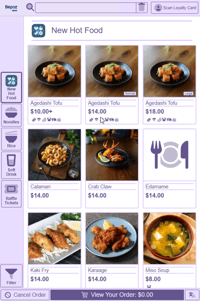
The bepoz Self-Service Kiosk gives venues a customer-facing ordering experience that is fast, intuitive, and aligned with the rest of the bepoz platform. Customers can browse menus, customise items, and complete payment independently while the Kiosk continues to use your existing SmartPOS, BackOffice, SmartKDS/KMS, promotions, pricing rules, and keymap configuration.
This article provides a high-level overview of the bepoz Kiosk, its purpose, and the core components required to get started. It also acts as the central starting point for kiosk-related setup and supporting documentation.

Prerequisites
-
bepoz Kiosk is available from bepoz v4.8.2 onwards.
-
Confirm your venue is running bepoz v4.8.2 or later before planning or deploying a Kiosk. Contact bepoz Sales Team for subscription pricing and upgrade options.
ℹ️What the bepoz Kiosk Does
The bepoz Kiosk enables venues to:
-
✅Offer self-service ordering
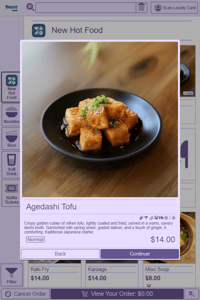
Customers can navigate menus, select items, choose condiments, and build orders with minimal staff intervention. -
✅Increase speed & throughput
Queue reduction, faster ordering during peak periods, and reduced wait times. -
✅Maintain consistent menu logic
Uses your existing product setup, pricing rules, promotions, keymaps, and allergen flags from BackOffice. -
✅Provide a branded customer experience
Customise colours, logos, theming, and behaviour via reusable Kiosk Profiles. -
✅Integrate seamlessly with operations
Orders flow directly to your SmartPOS and SmartKMS stations using the same configurations your venue already uses. -
✅Support modern payment workflows
Connects with supported EFTPOS terminals to enable quick and secure payments at the device.
🛠️How the Kiosk Fits Into Your bepoz Environment
The Kiosk works as an extension of your existing setup:
-
BackOffice: Configure kiosk profiles, keymap sets, menu items, pricing, allergen flags, and operator permissions.
-
SmartPOS: Orders appear as standard transactions; aligns with promotions, membership, prices, and reporting.
-
SmartKMS (KDS): Displays orders in real-time, following your existing kitchen printing and routing.
-
EFTPOS: Supports integrated payment terminals for customer-facing payment flow.
Note: No additional menu duplication or special product configuration is required.
⚙️Core Features at a Glance
-
Kiosk Profiles
Centrally manage appearance, behaviour, and workflow across multiple kiosks. -
KeyList Sets for Kiosk
Structured menu navigation optimised for a touchscreen customer journey. -
Allergen Flags
Clear allergen information displayed for customers during ordering. -
SmartPOS Logic
Promotions, surcharges, price levels, member pricing. -
Configurable Branding
Logos, colours, button styles, themes. -
Flexible Order Routing
Uses your existing kitchen printers and SmartKMS configuration — no duplication needed.
ℹ️What You Need to Set Up
Below is the setup journey for deploying bepoz Kiosk, some articles may be internal only as they contain high-level configuration.
-
Steps 1-3 can be performed by the venue
-
Steps 4-8 require assistance from bepoz Implementation Team or Support Team
Each step contains a link to its own detailed guide:
1. Create a Kiosk Profile
Controls the Kiosk’s branding, behaviour, menus, payment settings, order workflow, and device mapping.
🔗Further reading: Setting up a Kiosk Profile in BackOffice
2. Configure a KeyList Set for Kiosk
Defines the structure of your menu, categories, and product tiles displayed on the Kiosk.
🔗Further reading: Setting up a KeyList Set in BackOffice
3. Enable Allergen Flags (optional)
Allows allergens to be displayed to customers directly on product screens.
🔗Further reading: Setting up Allergen Flags in BackOffice
4. Set Up the Kiosk Workstation in BackOffice
Create the Kiosk workstation and apply your chosen profile.
Internal Use Only - 🔗Further reading:
5. Configure Printing & KMS Behaviour
Ensure orders route to the correct kitchen printers or bepoz KMS screens.
- use link from 4. above, then see '6. Configure Printing Setup'
6. Assign EFTPOS Device (optional)
Connect an integrated payment terminal to the Kiosk workstation:
bepoz Kiosks can only be integrated with non-USB Oolio Pay devices
Internal Use Only - 🔗Further reading:
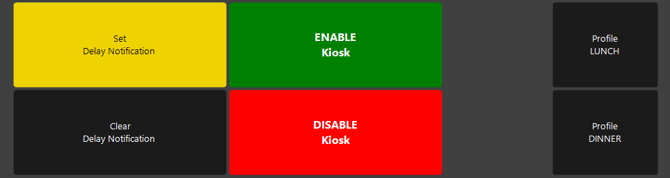
7. Configure Kiosk Controls in SmartPOS
Configure Till FunctionMap buttons in SmartPOS to assist in daily management of the Kiosk. Please contact bepoz Support to add/configure these function buttons.
Internal Use Only - 🔗Further reading:
Kiosk - SmartPOS FunctionMap Buttons
8. Deploy Kiosk to the Device
Deploy the Kiosk application and assign the workstation/device mapping.
Internal Use Only - 🔗Further reading:
Summary
The bepoz Kiosk delivers a self-service ordering experience that remains tightly aligned with your existing SmartPOS and BackOffice configuration. By using kiosk profiles, keymap sets, and standard product logic, venues can deploy a consistent, branded, and efficient ordering workflow across one or multiple kiosk devices. This article is the central starting point for kiosk setup and related resources.
updated to: bepoz v4.9.0.1